Understanding the AI Discovery Overview in Fiidom AEO
AI assistants and search tools are becoming a new way for shoppers to find products. To recommend your store, they need to read and understand it, and that's what your AI files do. The Overview on the AI Discovery page shows how well that's working, all in one place. At a glance, you can see:
- Whether all your AI files have been created.
- Whether their content is in sync with your Shopify store.
- How well AI can read and understand your store.
- Which files need to be regenerated or synced.
Where to find the Overview
In your Shopify admin, go to Apps > Fiidom AEO > AI Discovery. The Overview is at the top of the page and has two parts:
- Summary cards: five key numbers that sum up the health of your AI files.
- Resources table: the status of each AI file, one row per file.
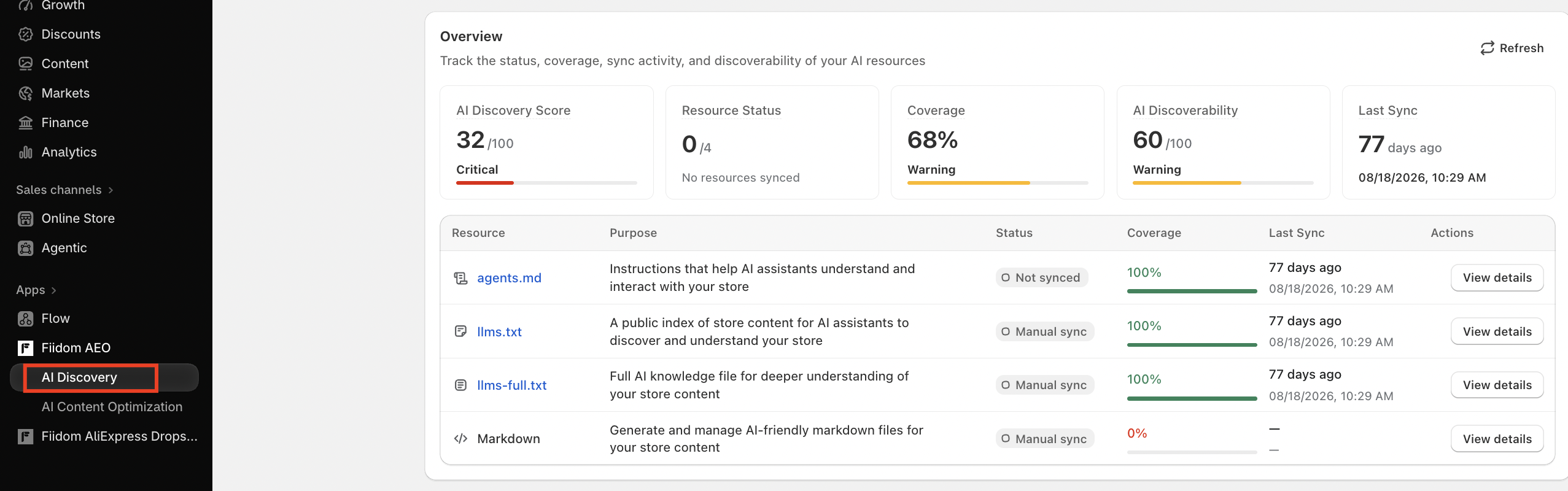
The Overview loads fresh data every time you open the page. To update it while you're on the page, for example right after regenerating a file, click Refresh in the top right corner. This recalculates all five summary cards, plus the status, coverage, and last sync time of every file in the table.
The five summary cards
| Card | What it tells you |
|---|---|
| AI Discovery Score | Your overall health score out of 100, combining all the other measures. Start here. |
| Resource Status | How many of your four AI files have been created successfully, for example 4 / 4. |
| Coverage | How much of your store's content has been included in your AI files, as a percentage. |
| AI Discoverability | A score out of 100 for how easily AI assistants can actually find and read your files. |
| Last Sync | When your AI files were last synced successfully. |
Your four AI files are agents.md, llms.txt, llms-full.txt, and your Markdown files.
What the colors mean
The AI Discovery Score, Coverage, and AI Discoverability cards each show a label and a colored bar:
| Score | Label | Color |
|---|---|---|
| 90–100 | Excellent | Green |
| 70–89 | Good | Blue |
| 50–69 | Warning | Orange |
| Below 50 | Critical | Red |
How Last Sync is shown
Last Sync uses the most recent successful sync across all your files. It shows a relative time, in hours if it was less than a day ago (such as "2 hours ago") or in days if it was longer, plus the exact date and time.
For example, if agents.md synced 1 hour ago and your other files synced 3 to 5 hours ago, Last Sync shows 1 hour ago.
How each score is calculated
AI Discovery Score
Your overall score combines four measures:
| Measure | Weight |
|---|---|
| Resource Status | 30% |
| Coverage | 30% |
| AI Discoverability | 20% |
| Sync Health | 20% |
Sync Health checks each of your four AI files. A file passes when its last sync succeeded without errors and it matches the latest version of your store content. Custom Markdown files always count as up to date. Each passing file adds 25 points, up to 100.
Example: Resource Status 100, Coverage 98, AI Discoverability 91, and Sync Health 100 give an AI Discovery Score of 97.
Resource Status
This counts how many of your four AI files have been created successfully:
- agents.md, llms.txt, and llms-full.txt count when their status is Synced.
- Markdown counts when your Markdown files have been generated successfully, including any updates you made in the admin. If Markdown shows as Not synced or In progress in the table, it isn't counted yet.
For example, if every file except llms-full.txt is ready, Resource Status shows 3 / 4.
Coverage
Coverage shows how much of your Shopify content has made it into your AI files. Each file is measured differently:
| File | Measured by | Example |
|---|---|---|
| agents.md | Sections configured, out of 4: Commerce Protocol (UCP), Product Data, Store Data, and Store Policies | 3 of 4 sections → 75% |
| llms.txt | Store items indexed, out of all items to index | 800 of 1,000 → 80% |
| llms-full.txt | Store items indexed, out of all items to index | 750 of 1,000 → 75% |
| Markdown | Pages generated, out of all pages that need Markdown | 800 of 1,000 → 80% |
A few things to know about llms.txt and llms-full.txt:
- A default file you haven't edited gets full coverage.
- Items are your products, collections, pages, and blog posts. If you choose not to index a source, such as blogs, those items are left out of the total.
- If you delete items in your Shopify admin but auto-update is off, the file can contain more items than your store has. Coverage then shows 100%.
The Coverage card combines all four files. It's the total number of items generated across all files, divided by the total number of eligible items in your store. Plan limits aren't taken into account, so the card shows how complete your content is overall. For example, 2,353 of 3,004 items gives 78.3%.
AI Discoverability
Coverage measures what's been generated. AI Discoverability measures whether AI assistants can actually reach and read it. Your score is the total from five checks, worth up to 20 points each:
| Check | How points are given |
|---|---|
| AI file published | 5 points each for agents.md, llms.txt, and llms-full.txt when they sync successfully. Markdown earns up to 5 points when at least one file is published for each of products, collections, blogs, and pages. You lose 1 point for each type that has none. |
| AI file accessible | Your AI files load correctly (return HTTP 200) when requested. |
| robots.txt allows crawling | Your robots.txt lets at least one AI crawler access each of agents.md, llms.txt, and llms-full.txt. You lose 7 points if one file is blocked, 14 if two are, and all 20 if all three are. |
| Latest version synced | Your latest product, collection, page, and blog updates are reflected in your files. If any file is out of date, this check scores 0. |
| No broken links | The links in your AI files all work. |
The resources table
Below the summary cards, the table lists each AI file with its own details.
| Column | What it shows |
|---|---|
| Resource | The file's name. Click agents.md, llms.txt, or llms-full.txt to open the live file on your store, such as yourstore.myshopify.com/llms.txt. |
| Purpose | What the file does for AI assistants |
| Status | The file's current state (see below) |
| Coverage | How complete the file is, with a progress bar |
| Last Sync | When the file was last synced successfully |
| Actions | View details opens the file's settings page |
What each file does
- agents.md: instructions that help AI assistants understand and interact with your store.
- llms.txt: a public index of your store content, so AI assistants can discover and understand your store.
- llms-full.txt: a full content index with complete product details, for deeper AI understanding.
- Markdown: AI-readable versions of your store pages.
Status labels
- Synced: the file has been generated and matches your latest Shopify data.
- In progress: the file is being processed.
- Not synced: the file hasn't been generated yet, or your Shopify data has changed and it needs to be synced again.
View details
Click View details to manage a file. It takes you straight to the right place: the agents tab for agents.md, the llms tab for llms.txt, the llms-full tab for llms-full.txt, and the Generated files tab for Markdown.
AI Discovery Resources
Under the Overview, the AI Discovery Resources section gives you quick access to the two places where you manage your files:
- AI Files: manage agents.md, llms.txt, and llms-full.txt, the files that help AI assistants discover and understand your store.
- Markdown: generate and manage AI-friendly Markdown files for your store content.
Click the arrow on either card to open it.
How to improve your score
If any card shows Warning or Critical, here's where to start:
- Sync files that aren't synced. Look for files in the table that aren't marked Synced, click View details, and sync or regenerate them. This raises Resource Status, Sync Health, and AI Discoverability at once.
- Fill in missing content. If Coverage is low, configure every agents.md section, include all the sources you want in llms.txt and llms-full.txt, and generate Markdown for the pages that don't have it yet.
- Publish Markdown for every content type. Make sure at least one Markdown file is published for products, collections, blogs, and pages.
- Check your robots.txt. Make sure it lets AI crawlers access your AI files.
- Keep files up to date. After you update products, collections, pages, or blog posts, sync your files so AI assistants see your latest content.
- Click Refresh after making changes to see your updated scores.
Should you need any further information, please do not hesitate to contact us directly at [email protected].