Managing Generated Markdown Files in Fiidom AEO
The Generated files tab is where you manage every Markdown file Fiidom creates from your Shopify store. From here you can:
- See all your Markdown files in one list.
- Generate Markdown files for your store content.
- Publish or unpublish individual files.
- Edit a file's Markdown content.
Open the Generated files tab
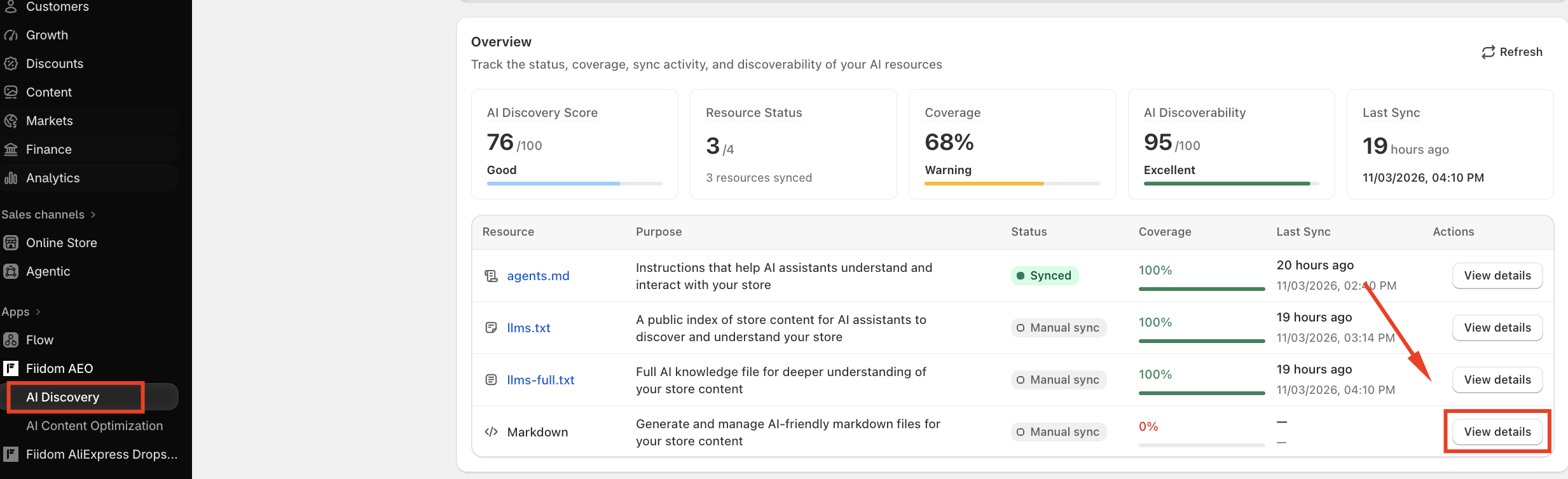
Go to Apps > Fiidom AEO > AI Discovery and click Markdown, or click View details next to Markdown in the Overview table. Open the Generated files tab.
How AI assistants find your Markdown files
The Fiidom app embed adds a hidden link to each of your store pages that has a Markdown file. It tells AI crawlers where to find an AI-friendly version of the page. For example, a product page gets a link to yourstore.com/apps/fiidom/md/products/the-minimal-snowboard.md. When an AI crawler visits the page, it follows that link and reads the clean Markdown instead of the full web page.
Step 1: Enable the app embed
The app embed is required. Without it, AI crawlers can't find your Markdown files. Until it's turned on, the rest of the Generated files tab is disabled.
The App embed status card at the top shows whether it's on. If it says Disabled:
- Click Enable app embed. Your Shopify theme editor opens on the app embeds panel.
- Turn on the Fiidom app embed and click Save in the theme editor.
- Return to Fiidom and click Verify app embed to confirm it's working.
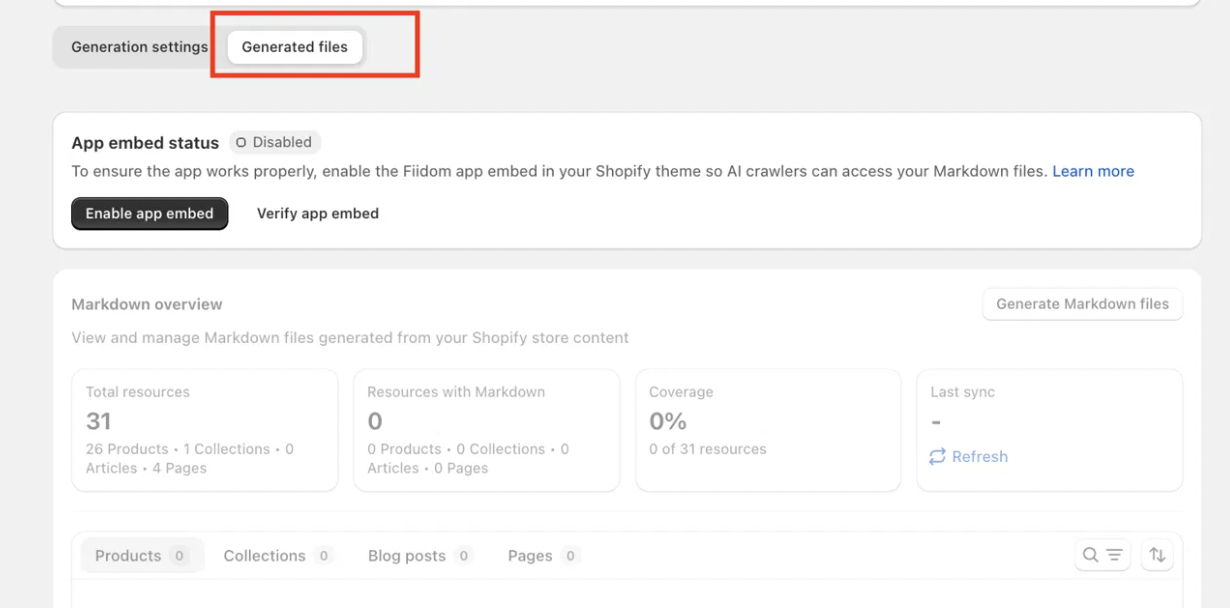
Note: If you turn the app embed off later, Fiidom stops adding Markdown links to your pages, and AI crawlers can no longer find your files. Your files and their publish status don't change, so everything works again as soon as you turn the embed back on.
Markdown overview
Four cards give you a live summary of your Markdown files:
| Card | What it shows | Example |
|---|---|---|
| Total resources | All the products, collections, articles, and pages in your store | 251 (230 Products, 3 Collections, 9 Articles, 9 Pages) |
| Resources with Markdown | How many of those already have a Markdown file in your list | 137 |
| Coverage | Resources with Markdown divided by total resources | 137 of 251 resources = 55% |
| Last sync | When files were last generated, either by you or by auto-update | Aug 2, 2026 at 08:45 AM |
Click Refresh under Last sync to reload all four cards with the latest numbers.
Step 2: Generate Markdown files
The first time you open this tab, you'll see No Markdown files generated for resources yet. To create your files:
- Click Generate Markdown files.
- Review the confirmation window. It shows roughly how long generation will take, and files are generated for all sources enabled in Generation settings.
- Click Generate Markdown to start, or Cancel to close the window.
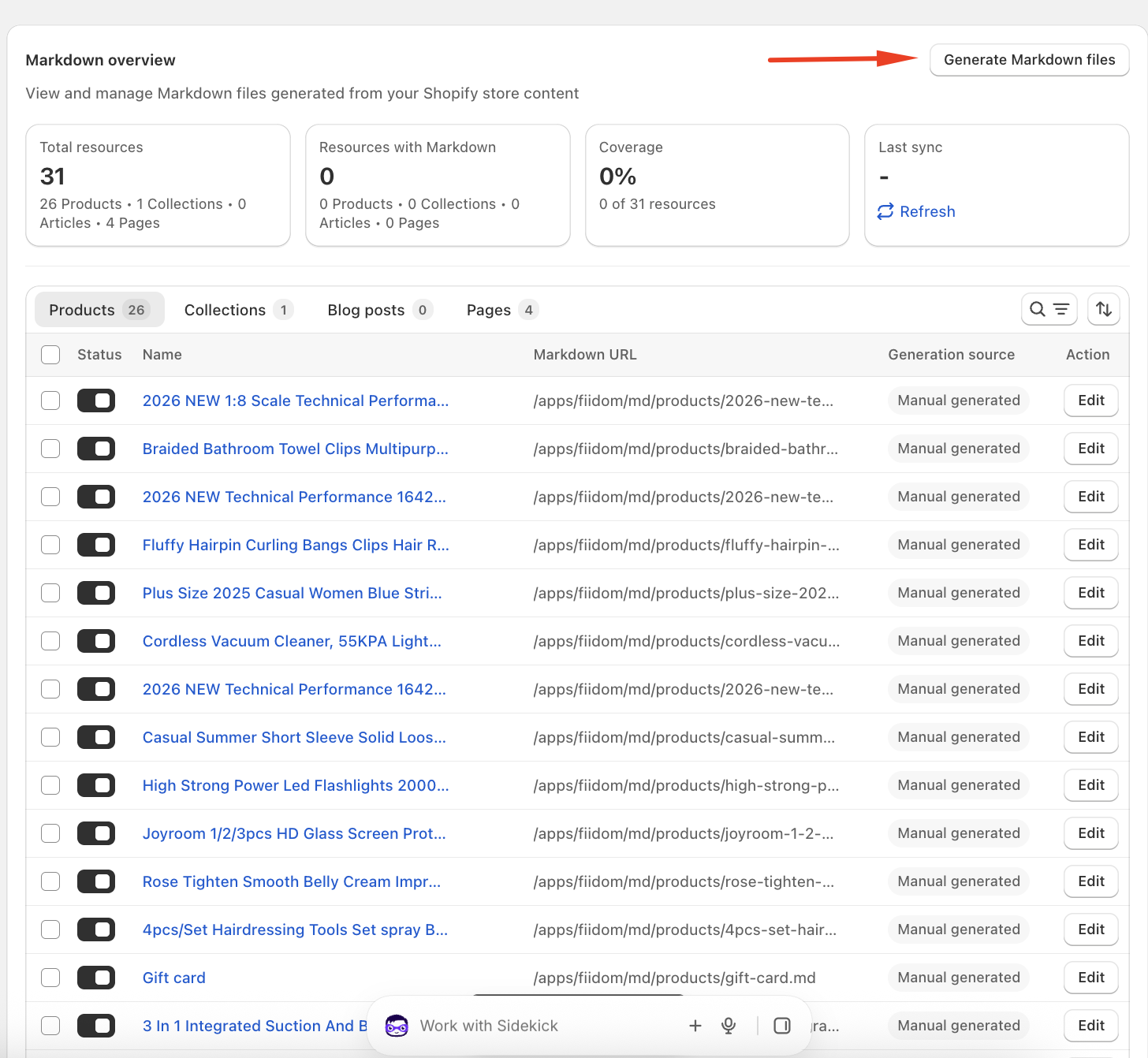
Generation runs in the background, so you can safely close the window or leave the page. If you stay, the file list shows a loading state until generation finishes.
How long it takes
| Total files | Estimated time |
|---|---|
| Up to 100 | About 1 minute |
| 101 to 300 | About 3 minutes |
| 301 to 500 | About 5 minutes |
| 501 to 800 | About 8 minutes |
| 801 to 1,000 | About 10 minutes |
Which content gets a Markdown file
- Products: only products with an Active status.
- Collections: all collections.
- Blog articles: only Visible articles. If an article is later hidden or deleted, its Markdown file is removed from the list.
- Pages: all pages.
When to generate again
Click Generate Markdown files whenever your store content changes and auto-update isn't on, or for content auto-update doesn't cover, like pages and blog articles. Fiidom regenerates the files that have changed in your selected sources.
If the button is disabled
Hover over Generate Markdown files to see why:
- No sources selected: Select at least one source in Generation settings to continue.
- Generation already running: Generation is in progress. Please wait until it's complete before generating again.
Changing your sources later
Changing your sources in Generation settings doesn't affect files you've already generated. For example, if you generated 4 blog files and then untick Blog articles, those 4 files stay in your list, and you can still edit, publish, and unpublish them.
Browse your Markdown files
Once your files are generated, they appear in a list grouped into tabs: Products, Collections, Blog posts, and Pages. Each tab shows how many files it contains, for example Products (130).
Search, filter, and sort
- Search by name, such as a product or collection name.
- Filter by Status (published or unpublished) or Generation source (manually generated or auto-generated).
- Sort by last updated, Newest first (the default) or Oldest first.
What each column shows
| Column | What it shows |
|---|---|
| Checkbox | Select several files to publish or unpublish them at once. |
| Name | The product, collection, article, or page name. Click it to open the page. Files you've edited show a Custom label. |
| .md URL | The file's address, such as /apps/fiidom/md/products/xxx.md. Hover over it to see the full URL. |
| Source | Manual Generated for files created with the Generate button, or Auto-generated for files created by auto-update. |
| Publish | Whether AI crawlers can access the file (see below). |
| Actions | Edit opens the file in the editor. View (eye icon) opens the .md file. |
The list shows 20 files per page.
Publish or unpublish a file
- Published: AI crawlers can access the file. New files are published by default.
- Unpublished: the file is hidden from AI crawlers but stays saved in Fiidom, so you can publish it again at any time.
Use the toggle in the Publish column for a single file, or select several files and publish or unpublish them together.
Edit a Markdown file
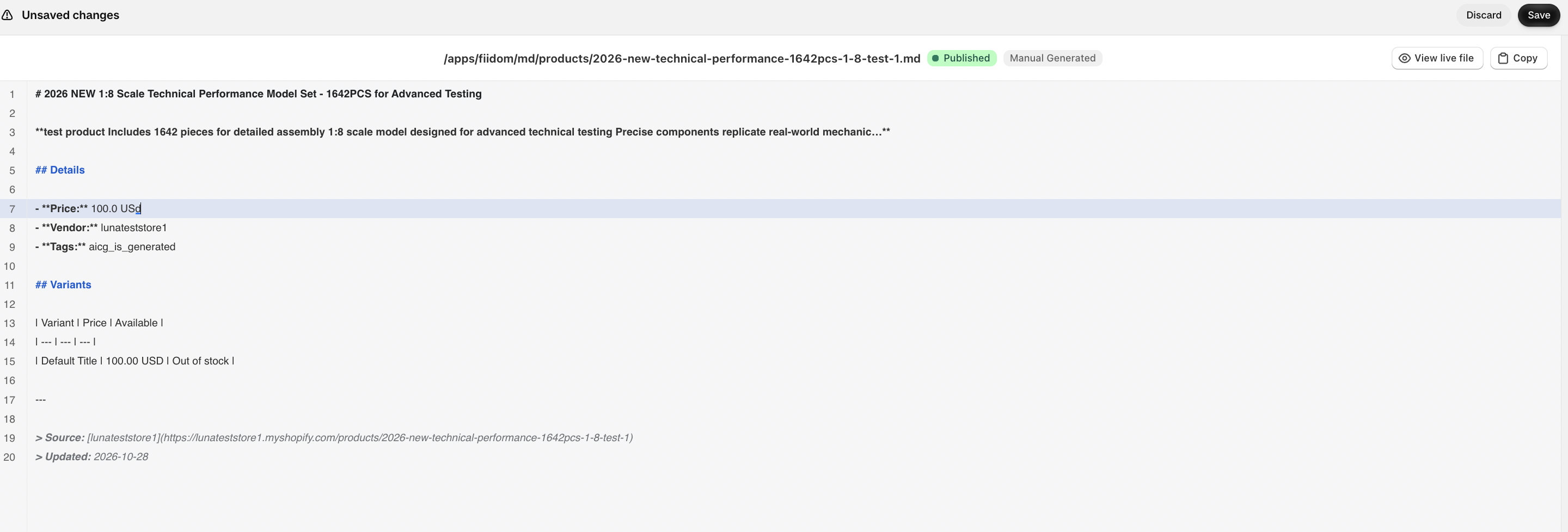
Click Edit on any file to open the editor. At the top you'll see:
- The name of the product, collection, article, or page.
- The file's publish status and source.
- The full .md file path. It can't be edited. Click View live file to open it in a new tab, or Copy to copy the content.
Below is the full Markdown content, which you can edit directly. Fiidom saves your text exactly as you type it. It doesn't check Markdown syntax or reformat anything, so review your changes carefully.
- Save: saves your changes and updates the file's last sync time. It stays disabled until you change something.
- Cancel: closes the editor without saving.
What happens when you edit a file: Custom Markdown
Once you edit and save a file, it becomes Custom Markdown and gets a Custom label in the list.
| Updated by auto-update | Updated by Generate Markdown files | |
|---|---|---|
| Files without the Custom label | Yes | Yes |
| Files with the Custom label | No | Yes |
This protects your edits. For example, if you've customized the Markdown for Product A and later change that product's title in Shopify, auto-update won't overwrite your file. The file only updates when you click Generate Markdown files. At that point, it's rebuilt from your latest Shopify content.
Tips
- Enable the app embed first. Nothing else on this tab works without it.
- Regenerate after content changes, especially for pages and blog articles, which auto-update doesn't cover.
- Unpublish instead of deleting. Unpublishing hides a file from AI while keeping it ready to use again.
- Edit only when it adds value. Custom files stop updating automatically, so use edits for content you want to control closely.
Should you need any further information, please do not hesitate to contact us directly at [email protected]