Markdown Generation Settings in Fiidom AEO
Fiidom AEO turns your store's pages into Markdown files: clean, AI-friendly versions of your products, collections, blog articles, and pages. AI assistants can read Markdown far more easily than a full web page, so these files help them understand your content accurately.
The Generation settings tab is where you decide what gets turned into Markdown, which details each file includes, and whether files stay up to date automatically.
Open Markdown settings.
There are two ways in:
- Go to Apps > Fiidom AEO > AI Discovery, and under AI Discovery Resources, click Markdown.
- Or click View details next to Markdown in the Overview table.
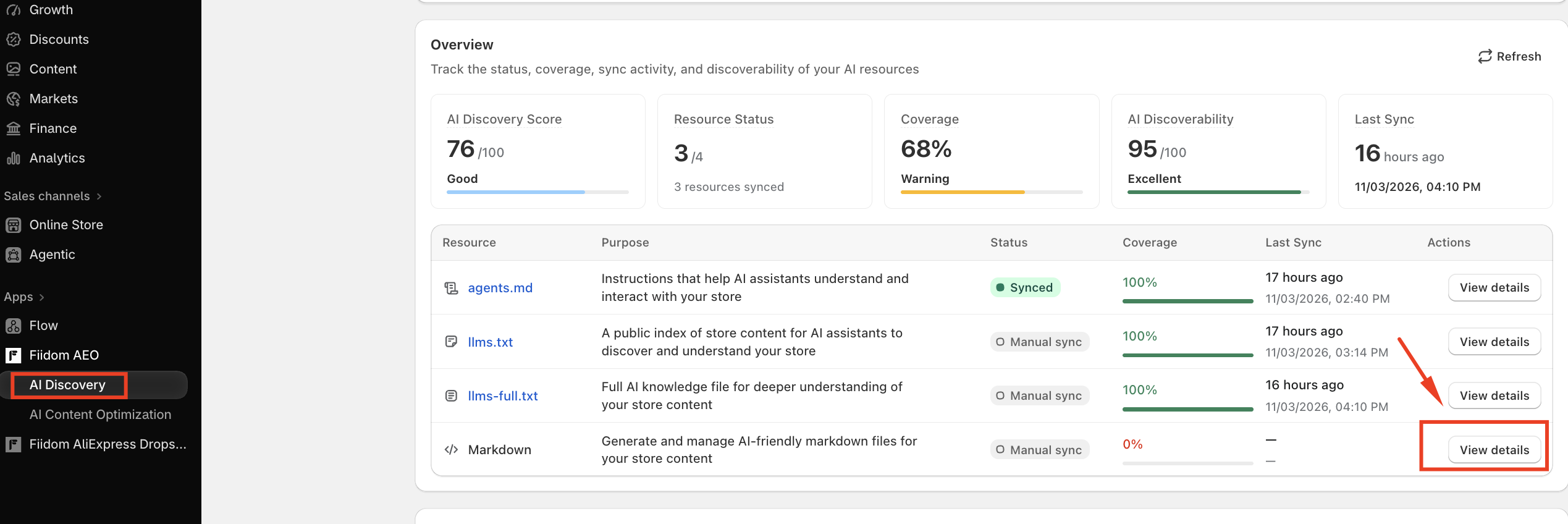
The Markdown page has two tabs: Generation settings, covered here, and Generated files, where you can review the files that have been created.
The Generation settings tab loads your current configuration and the number of items for each resource. It has three sections:
- Content and data to include: which resources and fields go into your Markdown files.
- Auto-update Markdown files: whether files update automatically when your store changes.
- Generation usage: how many files you've generated for each resource type.
Saving your changes
The Save button stays disabled until you change something. Once you've made your changes, click Save, and a confirmation message appears when your settings are saved.
Content and data to include
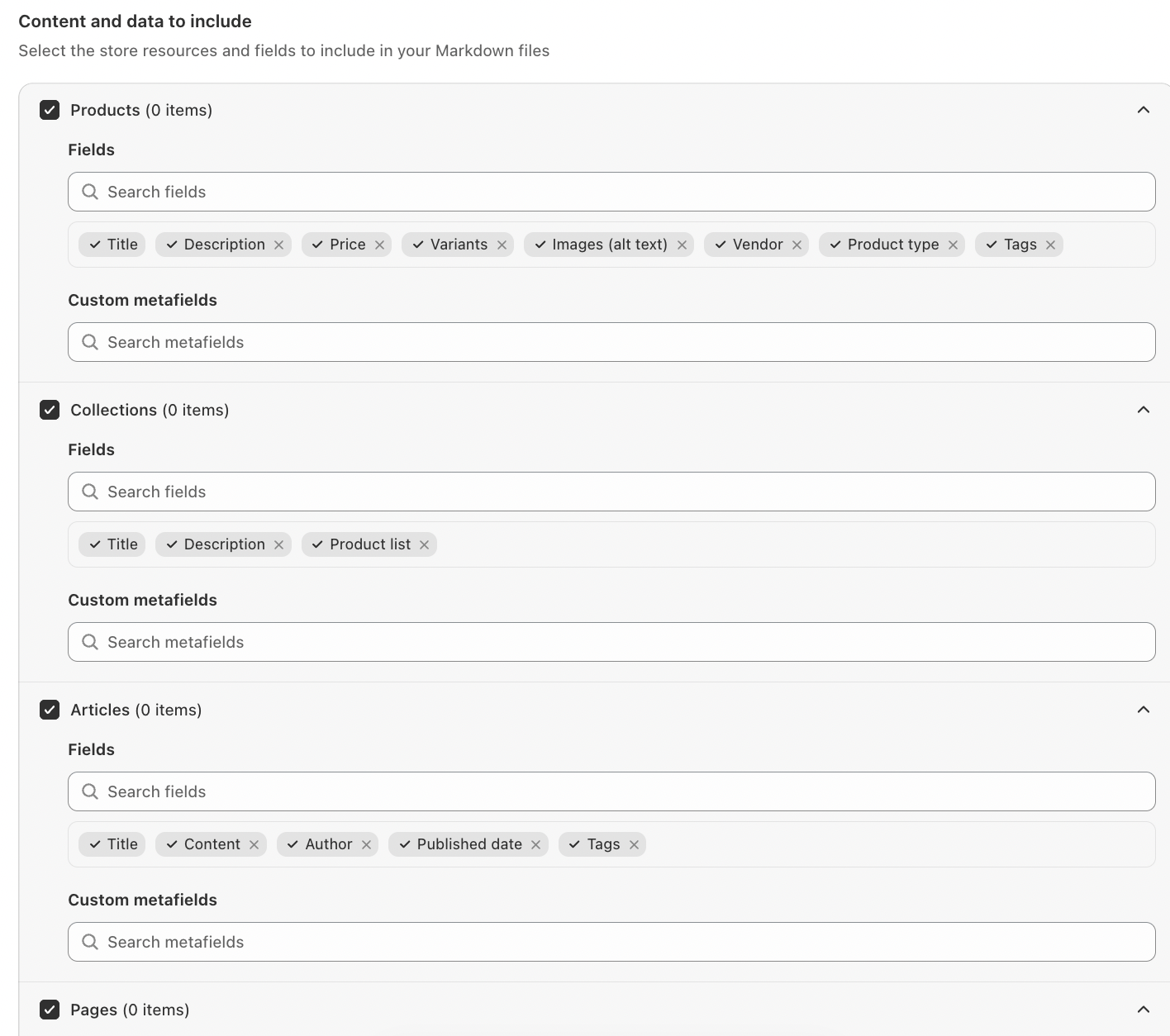
This section lists the four resources that can be turned into Markdown: Products, Collections, Articles, and Pages. Next to each name, a count shows how many Markdown files have been created for it, for example Products (230).
Choose your resources
All four resources are selected by default. Untick a resource's checkbox to leave it out completely. Fiidom won't generate Markdown files for it, and won't update them automatically.
Choose your fields
Under each resource, Fields controls which details appear in its Markdown files:
- Title is required and is always included.
- Click the x on any other field to remove it, or search to add it back.
- Click Select all to add every available field. It's disabled once all fields are selected.
| Resource | Available fields |
|---|---|
| Products | Title, Description, Price, Variants, Images (alt text), Vendor, Product type, Tags |
| Collections | Title, Description, Product list |
| Articles | Title, Content, Author, Published date, Tags |
| Pages | Title, Content |
Add custom metafields
Use Custom metafields to include extra information you store in Shopify metafields, such as a product's size guide or material details. Click the field and select as many metafields as you need.
Each resource shows only the metafields that belong to it, such as product metafields for Products. These metafield types are supported:
- Single value: single-line text, multi-line text, rich text, and URL
- List of values: single-line text and URL
Metafields load 20 at a time. Scroll to the bottom of the list to load more.
Auto-update Markdown files
Turn on Auto-update Markdown files to keep your Markdown in step with your store, so you don't have to regenerate files by hand. It's off by default.
When it's on:
| When this happens | Fiidom does this |
|---|---|
| A product or collection is created | Generates a new Markdown file for it |
| A product or collection is updated | Updates its Markdown file |
| A product or collection is deleted | Removes its Markdown file |
Only the affected files are updated, not your whole catalog. Newly updated files appear at the top of the Generated files tab.
When it's off, your Markdown files stay as they are when your store content changes.

Things to know
- Products and collections only. Shopify doesn't send update notifications for pages and blog articles yet, so those aren't updated automatically.
- The resource must be selected. Auto-update only works for Products and Collections when they're ticked under Content and data to include.
- Active products only. Markdown files are only created for products with an Active status. If a product changes to another status, its file is removed and no longer appears in your list.
Generation usage
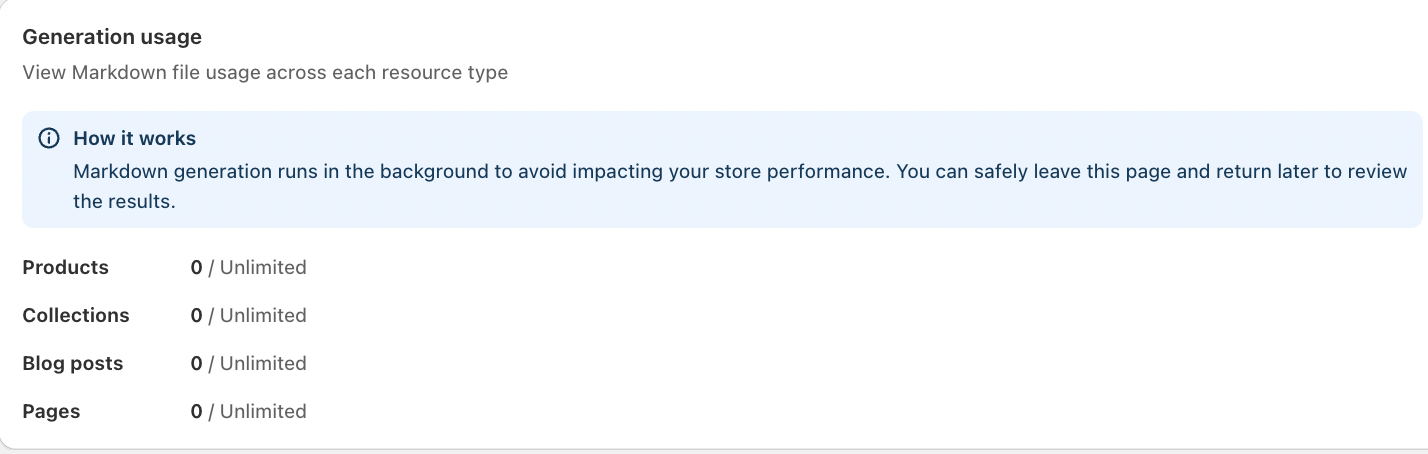
This section shows how many Markdown files you've generated for each resource type: Products, Collections, Blog posts, and Pages.
| Plan | Limit | How it's shown |
|---|---|---|
| Free | Up to 100 Markdown files per resource type. The most recently created items are generated first. | A progress bar for each type, such as 60 / 100. The bar turns red when you've used more than 90%. |
| Paid | Unlimited | A count for each type, such as 60 / Unlimited |
How it works: Markdown generation runs in the background, so it won't affect your store's performance. You can safely leave the page and come back later to review the results.
Good to know
| Situation | What happens |
|---|---|
| You untick a resource | Fiidom stops generating and auto-updating Markdown files for it. |
| You remove a field | The change applies the next time files are generated. Existing files stay as they are until then. |
| A metafield you selected is deleted in Shopify | It's skipped, and generation continues normally. It's also removed from your Custom metafields selection. |
| You save while files are being generated | The current run finishes with your previous settings. Your new settings apply to the next run. |
| A field no longer exists in Shopify | It's skipped. |
| You uninstall the app | All your Markdown files are deleted. If you reinstall, you'll start fresh as a new user. |
Tips for better Markdown files
- Include the details shoppers ask about. For products, keep Description, Price, and Variants so AI can answer questions accurately.
- Use metafields for unique details. Size guides, materials, and care instructions often live in metafields, and adding them gives AI a fuller picture.
- Turn on auto-update. It keeps product and collection files current without any extra work.
- Check Generated files after changes. Review a few files to make sure they look the way you expect.
Should you need any further information, please do not hesitate to contact us directly at [email protected]