Find Products Tailored to Your Store with For You Store
For Your Store is the first tab on the Find Product page in Fiidom AI Dropship. Every merchant sees the same product pool in the other tabs. This tab is different: it recommends AliExpress products picked for your store's niche, your main selling market, and the price range you usually sell at.
This article explains how recommendations are picked and how to adjust them. It also covers how to search, filter, and sort the list and how to save products you like.
Where to find For Your Store
- From your Shopify admin, open Fiidom AI Dropship.
- Go to Find Product.
- Select the For You Store tab.
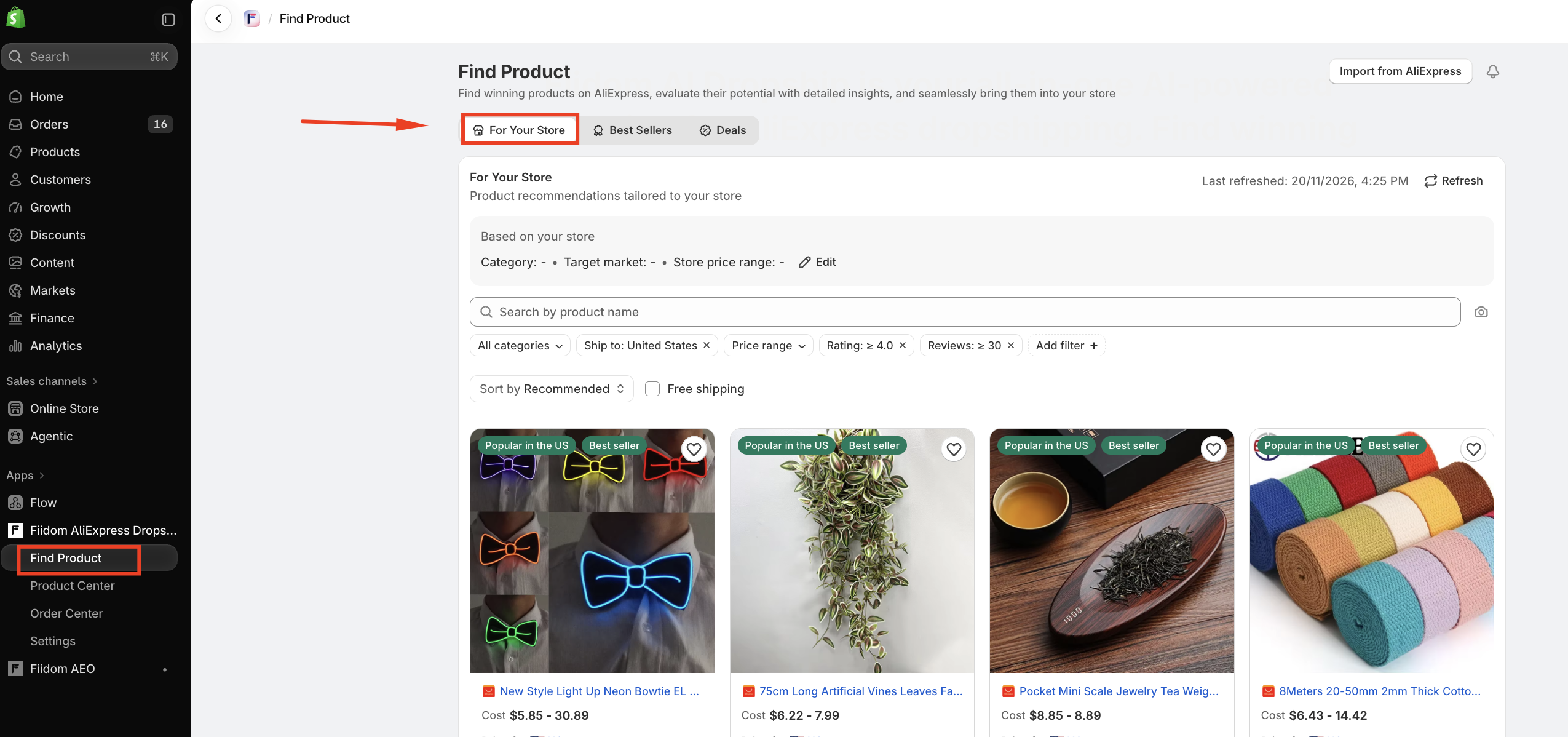
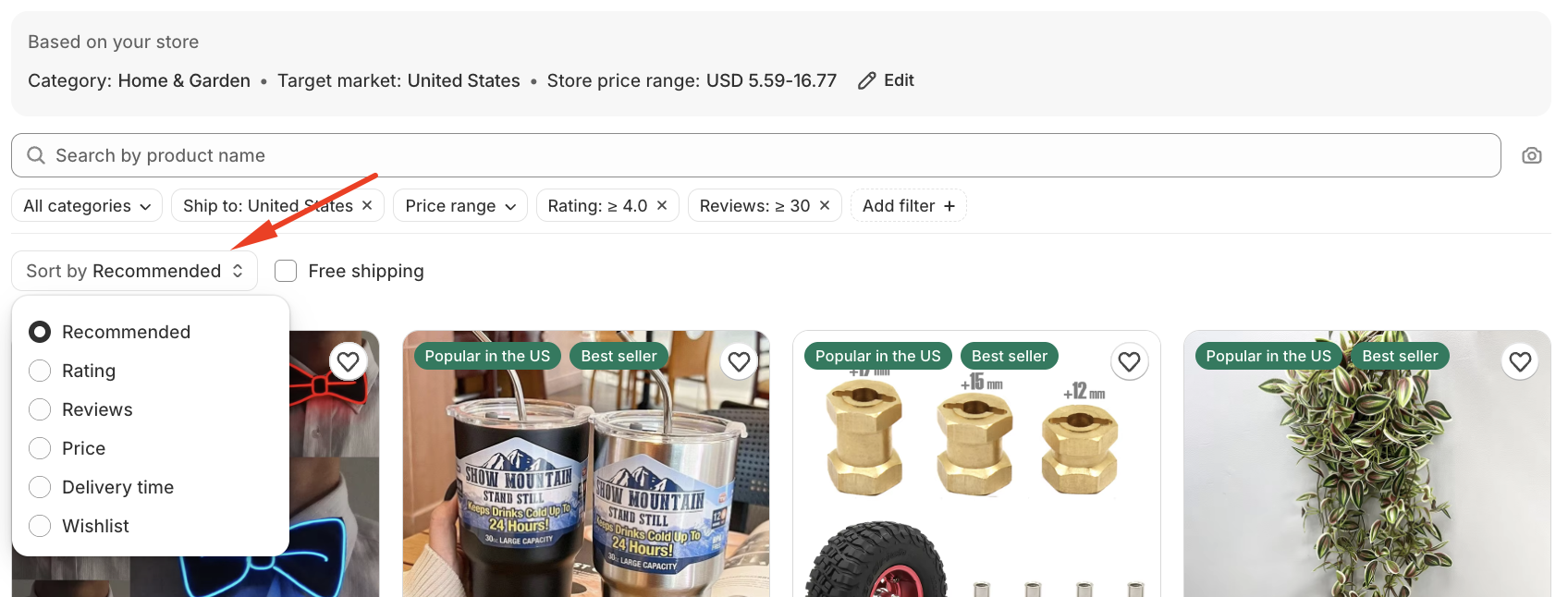
At the top of the tab, the Based on your store box shows the details the app uses to personalize your list:
- Category: your store's main product categories.
- Target market: the country you mainly sell to.
- Store price range: the price range your products usually fall in.
For example: Category: Home & Living • Target market: United States • Store price range: USD 15–60.

How recommendations are chosen
Fiidom looks at your Shopify store and uses three details to choose products.
| Store detail | Where it comes from |
|---|---|
| Category | The Shopify product categories of the products already in your store. If you sell across several categories, the app uses your main ones (up to 3) rather than forcing your store into a single category. |
| Target market | Your main selling market in Shopify Markets. |
| Store price range | Based on the median price of your products. The app gives priority to products priced between half and one and a half times that median. For example, if your median price is $40, products between $20 and $60 are ranked higher. |
With these details, the app does the following:
- Finds AliExpress best sellers, popular products, local stock, seasonal picks, and new arrivals in your categories.
- Combines them and removes duplicates.
- Checks product quality and whether the product can ship to your target market.
- Ranks the results so the products that fit your store best appear first.
Note: Products outside your store price range aren't removed. They're just ranked lower.
If there aren't enough products for your exact category and market, the app widens the search step by step. It first looks at the same category in any market. Then it tries a broader category, and finally general AliExpress best sellers. This way, your list is never empty.
Recommendation labels
Each product card can show up to 2 labels on the product image. They tell you why the product was recommended. Labels are based on real AliExpress data.
| Label | What it means |
|---|---|
| Best seller | A top seller in its category. |
| Popular in the [country] | A top seller in your category for your target market, for example Popular in the US. |
| Local stock | Stocked in a local warehouse, so it usually ships faster. |
| Choice | Part of AliExpress Choice. |
| Seasonal | A seasonal or event pick. |
| New arrivals | Recently added to AliExpress. |
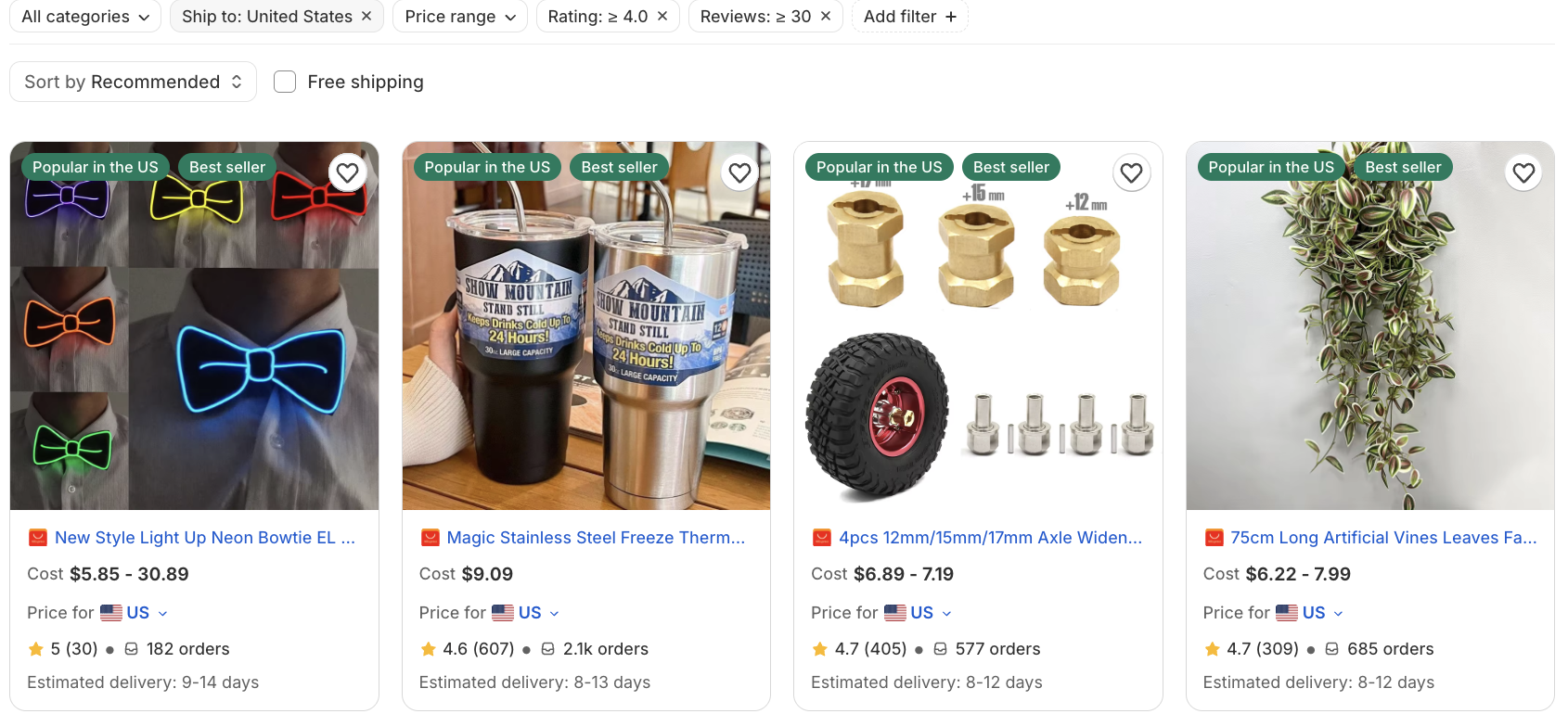
Edit your recommendation preferences
If the detected details don't match your plans, for example you want to test a new niche or market, you can change them.
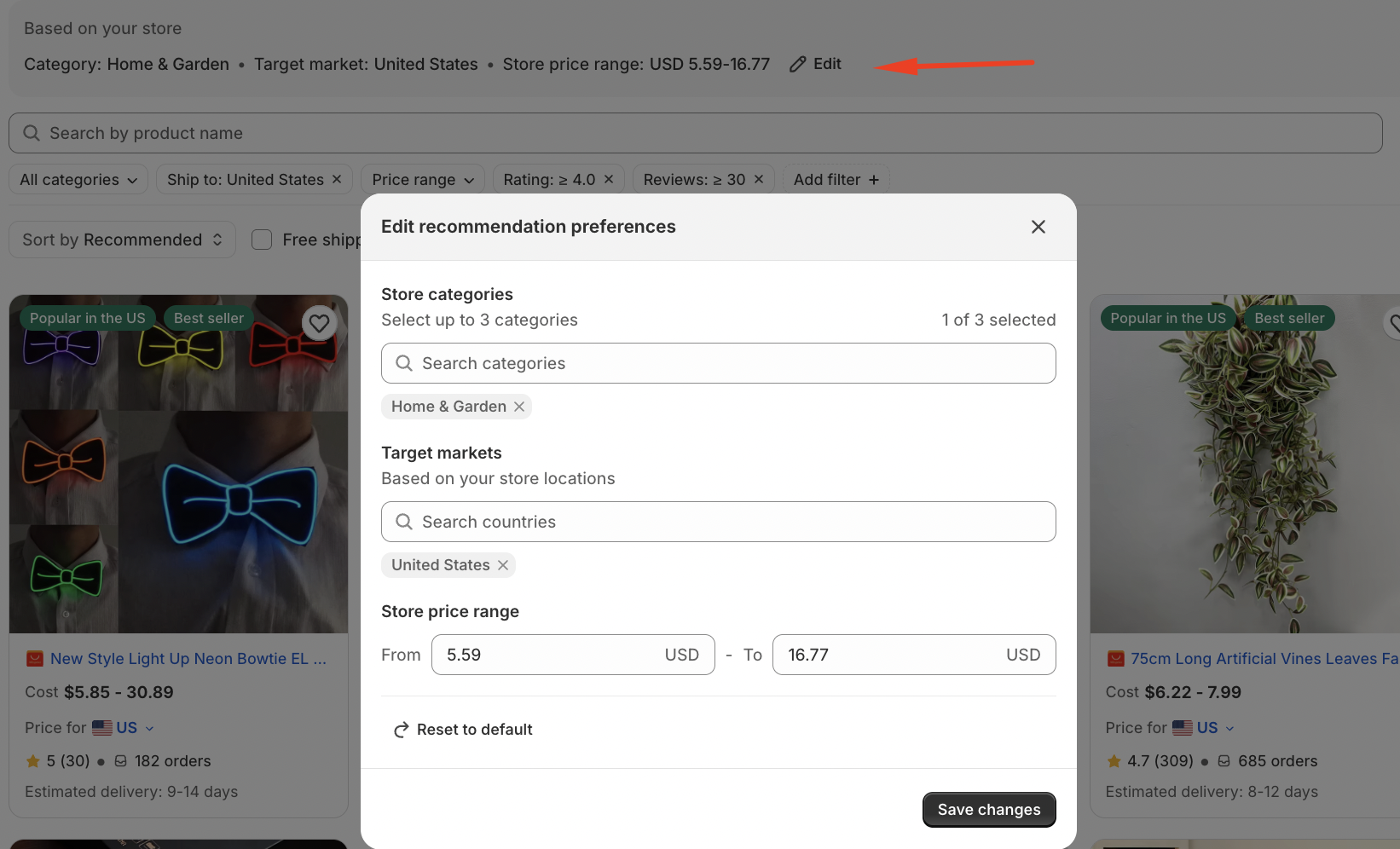
- In the Based on your store box, click Edit.
- In Edit recommendation preferences, update the following:
- Store categories: search for and select up to 3 categories. You must select at least one.
- Target markets: select one or more countries. The list shows the countries from your store locations. You must select at least one.
- Store price range: enter a From and To price in USD. Both fields are required, From can be 0, and From can't be higher than To.
- Click Save changes.
The product list reloads and is sorted again by Recommended using your new preferences. For example, if you change the price range to $20–$60, products in that range move to the top.
To go back to the details the app detected from your store, click Edit and then Reset to default. This option appears only after you've saved your own preferences.
Note: Editing your preferences only changes your recommendations. It doesn't change anything in your Shopify store.
Search, filter, and sort products
Search
Use the Search by product name bar to find a specific product. You can also click the camera icon to search by image.
Filters
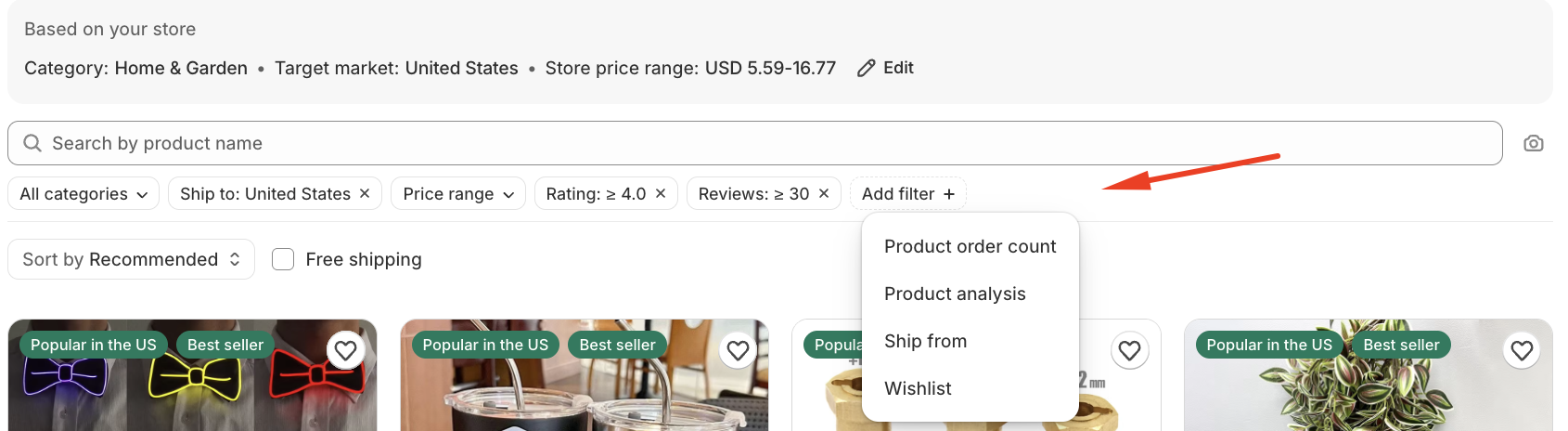
Use the filters below the search bar to narrow down the list:
- Category: defaults to your store categories. You can select more than one.
- Ship to: defaults to your target market.
- Price range: choose one of the preset price ranges or Store price range. Store price range uses the range the app calculated from your store, not the range you entered in Edit.
- Rating: show products rated ≥ 4.0, ≥ 4.5, or any rating.
- Reviews: show all products or only those with at least 30 reviews.
- Add filter: add more filters, such as order count, product analysis, ship from, and wishlist (all products, wishlist only, or not in wishlist).
To remove a filter, click the × next to it.
Sort
By default, the list is sorted by Recommended. This order combines your store categories, target market, best-seller data, rating, reviews, and store price range.
You can also sort by:
- Rating: High to Low
- Reviews: High to Low
- Price: Low to High
- Price: High to Low
- Wishlist: shows the products you saved to your wishlist
Select the Free shipping checkbox to show only products that ship free to your selected country.
What you see on each product card
- Product image and name
- Up to 2 recommendation labels
- Cost: the AliExpress price. For products with several variants, a range is shown, for example $9.99 - 19.99.
- Price for: the destination country used for cost and delivery. Click the country to change it.
- Rating, number of reviews, and number of orders
- Estimated delivery time
- Heart icon to save the product to your wishlist
Open a product to see its details and push it to your store. More products load as you scroll down.
Refresh the list
The Last refreshed time in the top-right corner shows when your list was last updated. Click Refresh to load the latest products.
Refreshing keeps your current filters and sort order.
Save products to your wishlist
Click the heart icon on any product card to save it. To see your saved products later, do one of the following:
- Sort the list by Wishlist.
- Click Add filter and filter by Wishlist.
FAQ
Why do I see products outside my price range?
Your store price range is used for ranking, not filtering. Products outside it are shown lower in the list. To hide them, use the Price range filter.
Why don't I see a Category, Target market, or Store price range in the Based on your store box?
The app may not have enough product or market data from your store yet. Click Edit to set your categories, target markets, and price range yourself.
Why doesn't the Store price range filter match the range I entered in Edit?
The Store price range filter always uses the range calculated from your store. The range you enter in Edit changes how products are ranked under Recommended.
How many categories can I choose?
Up to 3.
Does editing my preferences change my Shopify store?
No. It only changes the products recommended in the For Your Store tab.
Will clicking Refresh reset my filters?
No. Your filters and sort order stay the same. Only the product list is updated.