AI Content Optimization: All Products in Fiidom AEO
AI assistants and search engines recommend products they can clearly understand. The All products page in AI Content Optimization shows how ready each of your products is for AI, so you can spot weak listings and fix them first. Here you can:
- See the score and status of every product.
- Find which products need attention.
- Get a quick view of the main content issues.
- Search, filter, and sort to find the products to optimize.
- Open a product's details to review and fix its content.
Open All products
In your Shopify admin, go to Apps > Fiidom AEO > AI Content Optimization. The page opens on the Products tab. The other tabs are Collections, Blog posts, and Pages.
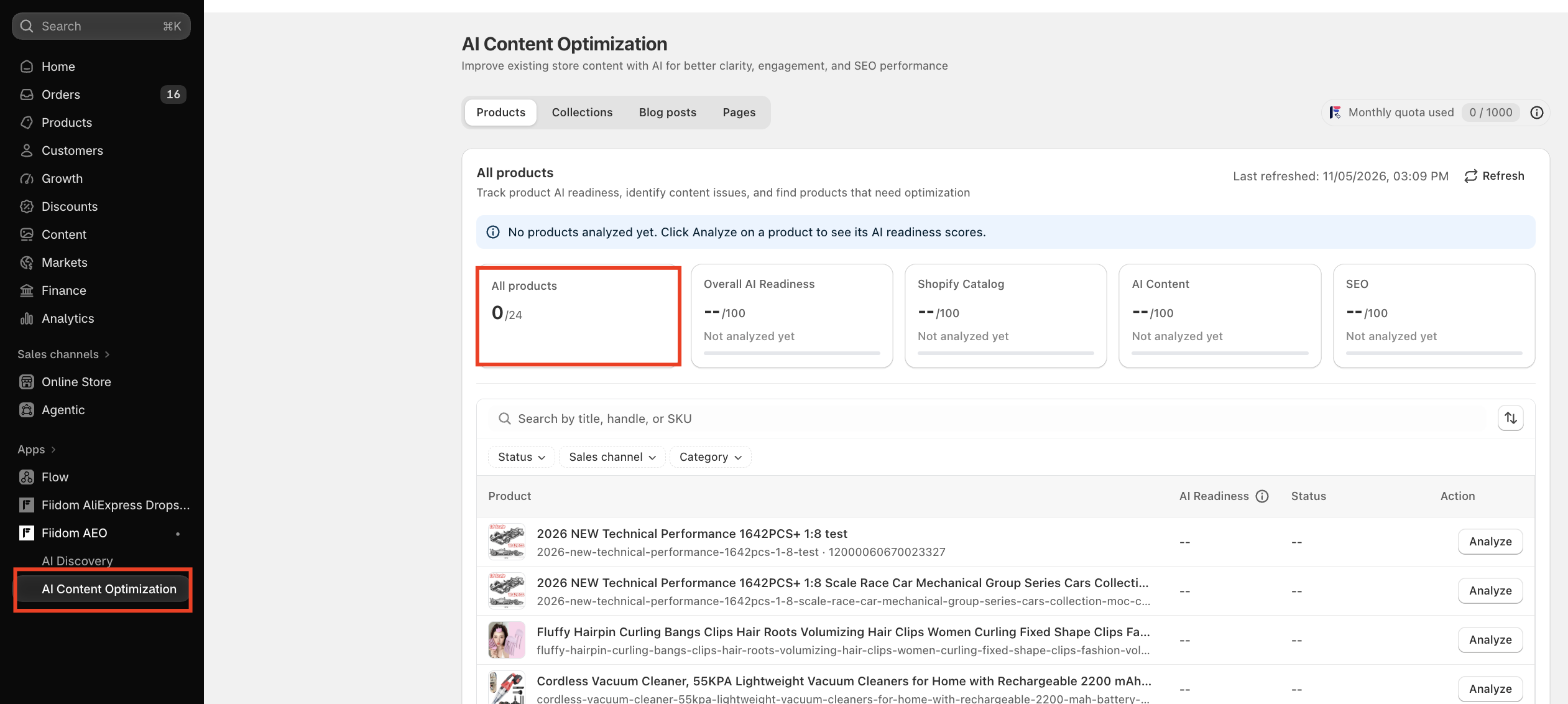
The All products page has three parts:
- Summary cards at the top, showing how many products you've analyzed and your overall scores.
- Search, filters, and sorting to find specific products.
- The product table, listing every product with its AI readiness score, status, and action.
In the top right, Monthly quota used shows how much of your AI analysis quota you've used this month, for example 0 / 1000.
Analyze a product
Products don't have scores until you analyze them. Until then, their AI Readiness and Status show "--", and the Action button says Analyze.
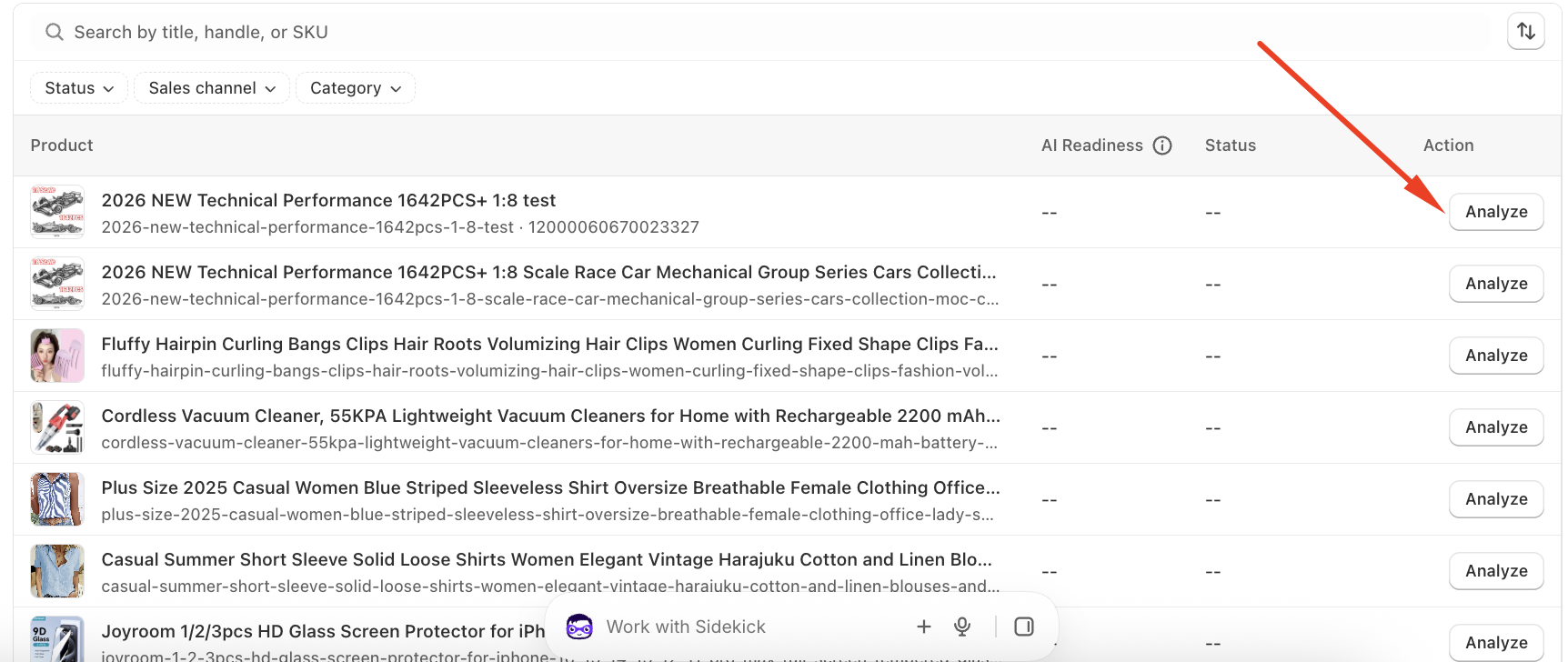
- Click Analyze next to a product. Each analysis uses 1 AI Analysis quota. Hover over the button to see this reminder.
- A loading indicator shows the analysis in progress. While it runs, other Analyze buttons are disabled, but you can keep searching, filtering, and browsing pages.
- When it's done, a success message appears and the product's row updates with:
- Its AI Readiness score
- Its Status: Good, Needs Improvement, or Poor
- A View details button in place of Analyze

The other Analyze buttons are then available again, so you can analyze your next product.
Messages you may see
| Message | When it appears |
|---|---|
| No products analyzed yet. Click Analyze on a product to see its AI readiness scores. | You haven't analyzed any products yet. |
| Scores are based on 10 of 92 analyzed products. Click Refresh to include newly analyzed products. | You've just analyzed a product. It disappears when you refresh or leave the page. |
| Unable to analyze this product. Please try again. | The analysis failed. Click Try again to retry that product. |
Summary cards
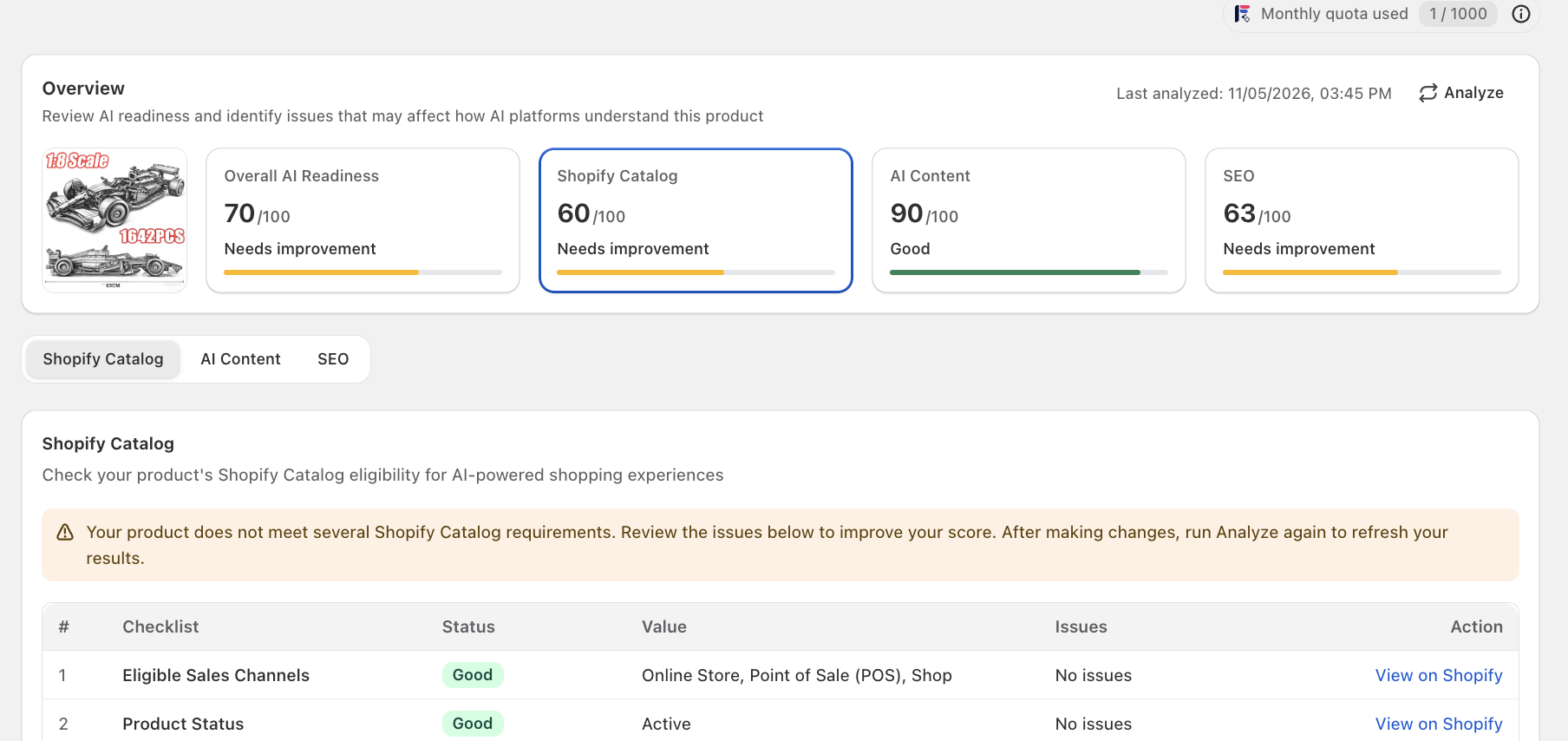
Five cards at the top summarize your products' AI readiness.
| Card | What it shows |
|---|---|
| All products | How many products you've analyzed out of your total, for example 10 / 92. Only active and unlisted products are counted. |
| Overall AI Readiness | Your overall score out of 100 |
| Shopify Catalog | The average Shopify Catalog score of your analyzed products |
| AI Content | The average AI Content score of your analyzed products |
| SEO | The average SEO score of your analyzed products |
All averages include only products you've analyzed. Before you analyze anything, the cards show "--" and Not analyzed yet.
How Overall AI Readiness is calculated
Overall AI Readiness combines the three scores, weighted by how much each matters to AI:
| Score | Weight |
|---|---|
| Shopify Catalog | 50% |
| AI Content | 30% |
| SEO | 20% |
For example, Shopify Catalog 80, AI Content 70, and SEO 90 give an overall score of (80 × 50%) + (70 × 30%) + (90 × 20%) = 79.
What the statuses mean
| Score | Status |
|---|---|
| 80–100 | Good (green) |
| 50–79 | Needs Improvement (yellow) |
| 0–49 | Poor (red) |
A product is also marked Poor if it has at least one critical issue in its Shopify Catalog, AI Content, or SEO, even if its score is high. This way, a good overall number never hides a serious problem.
When the cards update
The summary cards don't update automatically after each analysis. To include newly analyzed products, click Refresh, reload the page, or come back to it later.
The product table
The table lists all your active and unlisted products.
| Column | What it shows |
|---|---|
| Product | The product image, title, and URL handle or SKU |
| AI Readiness | The overall score out of 100. Click the score to see its breakdown into Shopify Catalog, AI Content, and SEO. |
| Status | Good, Needs Improvement, or Poor, based on the AI Readiness score. Shows "--" if the product hasn't been analyzed. |
| Action | Analyze for products not yet analyzed, or View details for analyzed products |
View product details
Click View details to open the product's detail page on the Shopify Catalog tab. Because the product has already been analyzed, all three tabs have full results ready:
- Shopify Catalog
- AI Content, with Description and Title
- SEO
From there, you can review each issue and fix the content. When the product is updated, the information in each tab is analyzed again, so your results stay current.
Find products to optimize
Search
Search by product title, URL handle, or SKU. You can combine search with any filter.
Filters
| Filter | Options | Default |
|---|---|---|
| Status | Good, Needs Improvement, Poor, Not Analyzed | All statuses |
| Sales channel | Online Store, Shop, Point of Sale | All channels |
| Category | Your top-level Shopify product categories | All categories |
Tip: Filter by Not Analyzed to see which products you haven't checked yet, or by Poor to find the products that need the most work.
Sort
Click the sort icon next to the search bar to sort products by their scores.
Your search, filters, and sort reset each time you reload or come back to the page.
Pages
The table shows 10 products per page. Your search and filters stay in place as you move between pages.
Refresh
Click Refresh to update:
- The All products and Overall AI Readiness cards
- The Shopify Catalog, AI Content, and SEO cards
- Each product's details, AI readiness score, and status in the table
Your current filters and sort stay in place. Last refreshed shows when the data was last updated. Refresh is unavailable while a product is being analyzed.
Your monthly AI Analysis quota
Each time you click Analyze, it uses 1 AI Analysis quota. Fixing content or SEO in a product's detail page also uses quota.
Monthly quota used in the top right of the Products tab shows how much you've used out of your monthly allowance, for example 12 / 500 or 12 / 1000, depending on your plan.
When you've used it all:
- The counter shows that your quota is full, for example 500 / 500.
- A notice tells you that you've used all your AI Analysis quota.
- Hovering over Analyze shows No AI Analysis quota left (500/500), and you can't analyze more products until your quota resets.
Tips for getting the most out of All products
- Start with your best sellers. Analyze the products that bring in the most sales first, so improvements have the biggest impact.
- Fix Poor products first. They may have a critical issue that keeps AI from understanding them.
- Focus on Shopify Catalog. It counts for half of the overall score, so improving it lifts your readiness the most.
- Refresh after a batch. Analyze several products, then click Refresh to see your updated overall scores.
- Use your quota wisely. Products are re-analyzed automatically when they're updated, so you don't need to analyze the same product again by hand.
Should you need any further information, please do not hesitate to contact us directly at [email protected]