Product Detail: SEO Tab in Fiidom AEO
Search engines and AI assistants both rely on a product's SEO details to understand and surface it. The SEO tab checks four key elements of every product, shows which ones need work, and helps you fix them with AI.
Open the SEO tab
- Go to Apps > Fiidom AEO > AI Content Optimization.
- On the Products tab, click View details next to an analyzed product.
- Select the SEO tab, next to Shopify Catalog and AI Content.
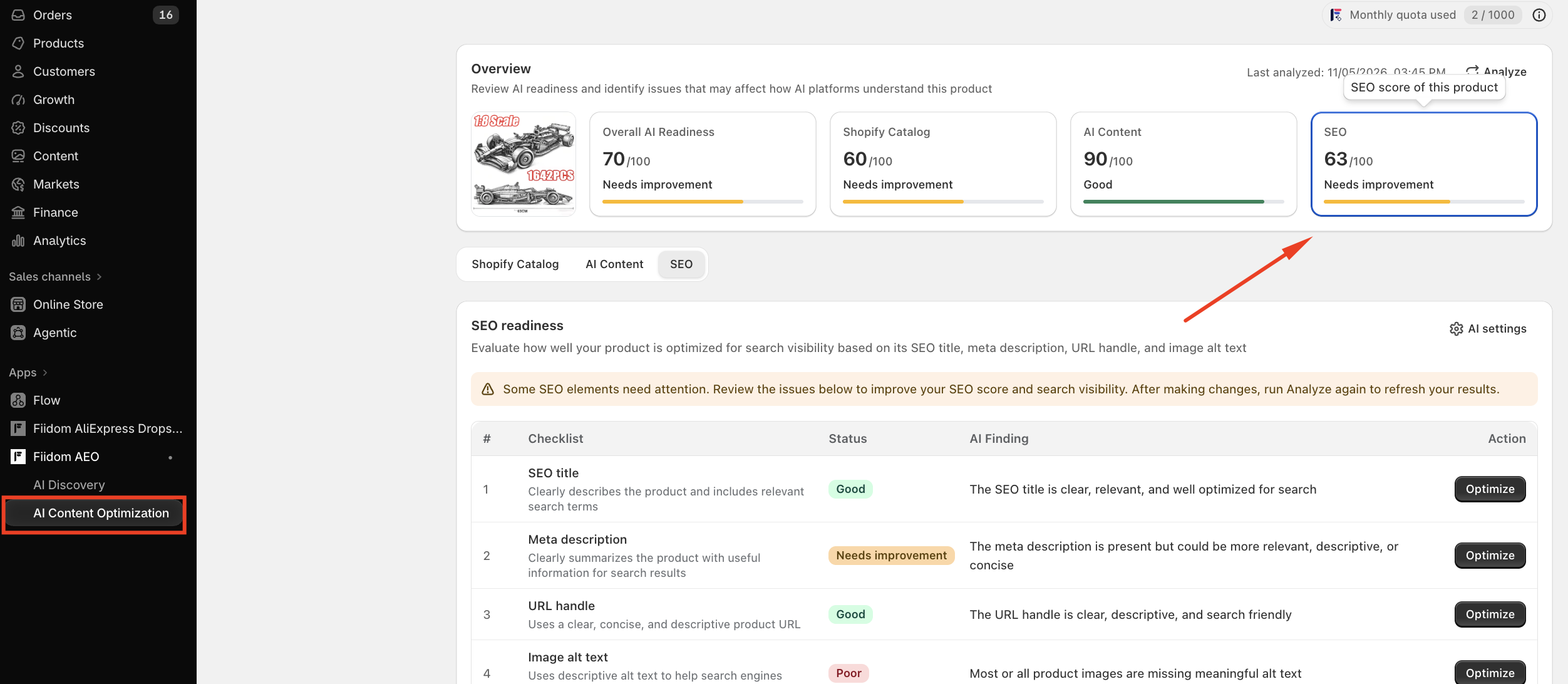
The tab is titled SEO readiness. It evaluates how well your product is optimized for search visibility, based on its SEO title, meta description, URL handle, and image alt text.
The SEO card and score
When you open this tab, the SEO card at the top is highlighted. It shows the product's SEO score out of 100. The SEO score makes up 20% of the product's Overall AI Readiness.
The score is the total of the four SEO checks. Each one is worth up to 25 points:
| Status | Points per check |
|---|---|
| Good | 25 |
| Needs Improvement | 13 |
| Poor | 0 |
For example, two Good checks, one Needs Improvement, and one Poor give 25 + 25 + 13 + 0 = 63.
| Score | Status |
|---|---|
| 80–100 | Good (green) |
| 50–79 | Needs Improvement (yellow) |
| 0–49 | Poor (red) |
The score is also marked Poor if the product has at least one critical issue, even when the number is high.
Status messages
A message above the checklist sums up the results:
- All checks are Good: Good SEO Performance. All SEO elements are well-optimized.
- Some checks need work: Some SEO elements need attention. Review the issues below to improve your SEO score and search visibility. After making changes, run Analyze again to refresh your results.
The SEO checklist
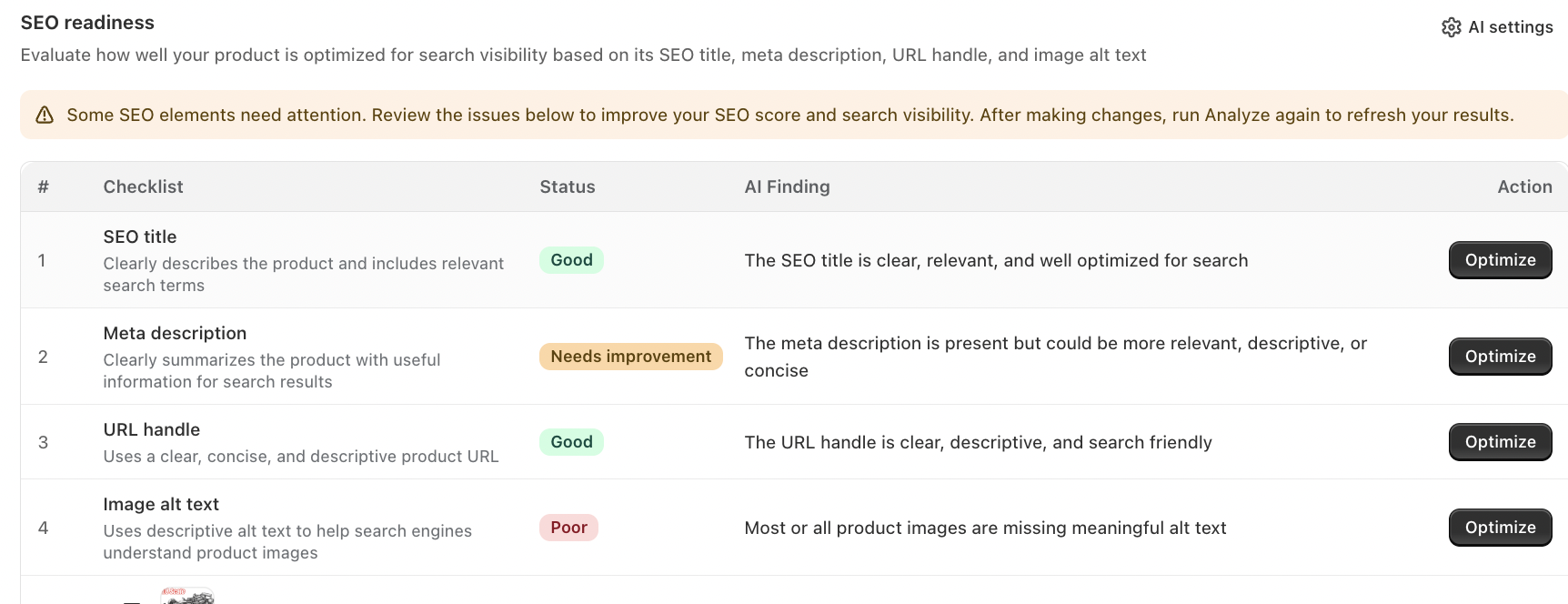
The checklist has four columns: Checklist, Status, AI Finding (what the AI noticed), and Action.
| Check | What it covers | Good looks like |
|---|---|---|
| SEO title | The page title shown in search results | Clearly describes the product and includes relevant search terms |
| Meta description | The search snippet under the title | Clearly summarizes the product with useful information for shoppers |
| URL handle | The product's web address | Clear, concise, and descriptive |
| Image alt text | Text that describes each product image | Descriptive alt text that helps search engines understand your images |
AI findings tell you what to improve, for example:
- The meta description is present but could be more relevant, descriptive, or concise.
- The URL handle is unclear, overly complex, or poorly optimized for search.
- Most or all product images are missing meaningful alt text.
Under Image alt text, each product image is listed so you can see which images the check covers.
Click Optimize next to any check to fix it.
Fix SEO with Optimize
Click Optimize next to any check to open the Optimize product SEO window. All four SEO elements are in one place, so you can fix everything together. The top shows the product name, status, and category (blank if none is set), plus a View on Shopify link.
Current and optimized content
The window shows two columns side by side:
| Column | What it shows |
|---|---|
| Current content | Your product's current SEO title, meta description, URL handle, and the alt text of each image |
| Optimized content | The improved version of each field, ready for you to review and edit, with one alt text box for every image |
Each field shows a character count, such as 5/70 for the SEO title, 5/160 for the meta description, and 5/120 for each image's alt text. The full product URL appears under each URL handle so you can preview the address.
When the optimized content comes from AI, it's marked Fiidom AI suggestion. If you edit it by hand, the label is removed. Click Skip suggestion if you don't want to use it.
Fine-tune with AI Optimize
Use the AI Optimize panel on the right to guide the rewrite. You can set the Product category, add Key features as keywords, and choose the Audience, such as General Consumers. Then click Optimize to generate a new version. The panel also shows your Monthly quota used.
Save your changes
When everything looks right, click Save to update the product in your Shopify admin. Then click Analyze on the product detail page to refresh your SEO score.
Auto-optimize with AI
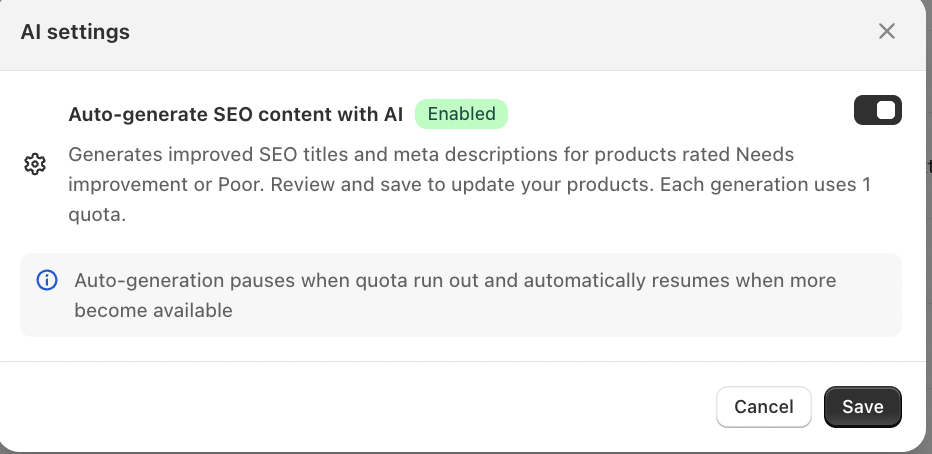
Click AI settings in the top right of the SEO tab to manage Auto-optimize with AI. It's on by default.
When it's on, opening the Optimize product SEO window automatically creates optimized content for every SEO element with a Needs Improvement or Poor status. Elements that are already Good stay as they are. A message lets you know: Your optimized SEO content is ready to save. Save now. Review the suggestions, then click Save.
To turn it off, switch the toggle off in AI settings and click Save. You can still optimize manually from the AI Optimize panel.
Note: Auto-optimization pauses when you run out of quota and resumes automatically once more quota becomes available.
How quota is used
| Action | Quota used |
|---|---|
| Each auto-optimization | 1 |
| Each time you click Optimize in the AI Optimize panel | 1, or more for settings that need extra quota |
You can see how much you've used in Monthly quota used at the top of the page and in the AI Optimize panel.
Tips for a higher SEO score
- Fix Poor checks first. Each one moves from 0 to 25 points once it's Good, the biggest jump you can make.
- Don't forget image alt text. It's easy to miss but worth a quarter of the score, and it helps shoppers using screen readers too.
- Keep URL handles short and descriptive. Remove extra words and codes so the address clearly says what the product is.
- Write meta descriptions for shoppers. A clear, useful summary gets more clicks from search results.
- Analyze again after saving. Click Analyze to confirm your fixes and update the score.
Should you need any further information, please do not hesitate to contact us directly at [email protected]