Product Detail: Shopify Catalog Tab in Fiidom AEO
Shopify uses its product catalog to power AI shopping experiences, such as product recommendations in AI assistants. If a product doesn't meet Shopify Catalog requirements, it may not be recognized correctly or shown at all. The Shopify Catalog tab checks each product against these requirements and tells you exactly what to fix.
This tab focuses only on Shopify Catalog. AI content and SEO are checked in their own tabs on the same page.
Open a product's details
- In your Shopify admin, go to Apps > Fiidom AEO > AI Content Optimization.
- On the Products tab, find an analyzed product and click View details. If the product hasn't been analyzed yet, click Analyze first.
The product detail page opens on the Shopify Catalog tab.
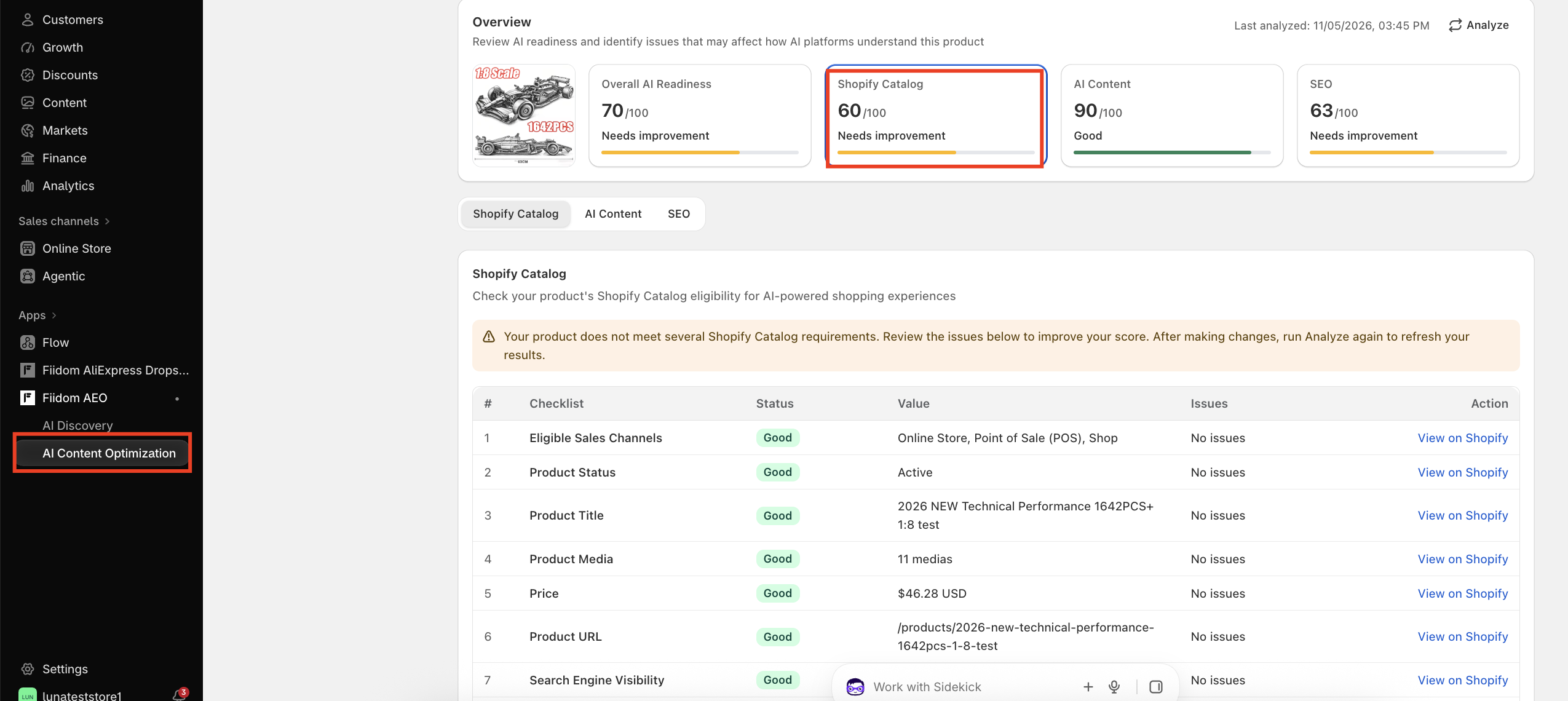
Product header
The top of the page shows the product's basic information:
- Product name: click it to open the product in Shopify.
- Product status, such as Active.
- Product category, if one is set. If the product has no category, this is left blank.
- Product image: click it to open the product in Shopify.
The Analyze button is available throughout the product detail page. Click it to analyze the product again after you've made changes, so your scores reflect the latest version. Last analyzed next to it shows when the product was last checked.
AI readiness scores
Below the header, four cards show the product's scores out of 100:
| Card | What it measures |
|---|---|
| Overall AI Readiness | The product's combined score: Shopify Catalog × 50% + AI Content × 30% + SEO × 20% |
| Shopify Catalog | Whether the product meets Shopify Catalog requirements (this tab) |
| AI Content | How well AI can understand the product's title and description |
| SEO | How well the product is set up for search engines |
When you're on the Shopify Catalog tab, the Shopify Catalog card is highlighted.
What the score statuses mean
| Score | Status |
|---|---|
| 80–100 | Good (green) |
| 50–79 | Needs Improvement (yellow) |
| 0–49 | Poor (red) |
A score is also marked Poor if the product has at least one critical issue, even when the number is high. This makes sure a good score never hides a serious problem.
The Shopify Catalog checklist
The tab shows a single checklist of every requirement. If everything passes, you'll see: Your product meets all Shopify Catalog requirements and is ready for AI-powered shopping experiences.
| Column | What it shows |
|---|---|
| Checklist | The requirement being checked |
| Status | Good, Needs Improvement, or Poor |
| Value | What Fiidom found in your Shopify data, such as "5 images" or "$272.99 USD" |
| Issues | What's wrong, or "No issues" |
| Action | View on Shopify, Fix on Shopify, or How to fix |
The checklist covers nine requirements:
- Sales Channel Eligibility
- Product Status
- Product Title
- Product Images
- Price
- Product URL
- Search Engine Visibility
- Sensitive Content
- Product Category & Category Metafields
Status meanings
| Status | Meaning |
|---|---|
| Good | The requirement is fully met. |
| Needs Improvement | The requirement works but isn't optimized. Review and improve it when you can. |
| Poor | A required item isn't met. Fix this first. |
All actions open the product in your Shopify admin. Fiidom never changes your product automatically: you're always the one who decides what to update.
Core requirements
The first seven requirements are checked directly against your Shopify product data. No AI is involved.
| Requirement | Good | Needs Improvement | Poor |
|---|---|---|---|
| Sales Channel Eligibility | Published on at least one channel: Online Store, Shop, or Point of Sale | Missing SKU or barcode | Not published on any channel |
| Product Status | Active | Unlisted | — |
| Product Title | At least 8 characters | Shorter than 8 characters | Contains only special characters |
| Product Images | More than one image or video | Only one image or video | No images or videos |
| Price | Greater than 0 | — | Price is 0 |
| Product URL | Has a valid URL, such as /products/oak-dining-table | — | — |
| Search Engine Visibility | Visible to search engines | — | Hidden from search engines |
Tip: Most of these are quick fixes in Shopify, such as setting the product to Active, adding a second photo, or publishing it to the Online Store. Click View on Shopify to go straight to the product.
Sensitive content
This requirement uses AI to check whether a product falls into a sensitive or restricted category. Products in these categories may be limited or excluded from AI shopping experiences.
Fiidom checks for these categories:
- Adult & sexual content
- Weapons & explosives
- Hazardous materials
- Illegal drugs & psychoactive substances
- Tobacco & nicotine
- Medical devices, prescription & unapproved drugs
- Alcoholic beverages
- Gambling & lottery
- Cryptocurrency & financial products
- Counterfeit goods
- Hate & discriminatory content
- Public figure misuse
- Endangered wildlife & animal abuse
- Surveillance & spyware
- Personal data & identity exposure
What you'll see
- No issues: the Value column shows No sensitive content detected.
- Content flagged: the Value column shows how many flags were found, and the Issues column names the category, such as Contains restricted adult content.
What to do
If content is flagged, click How to fix and review the product yourself. Fiidom doesn't block or edit the product. AI can make mistakes, so if the product doesn't actually belong in a sensitive category, adjust its title, description, or images so it's described accurately.
Product category & category metafields
This is the most important requirement, worth 40 of the 100 points. A correct Shopify product category, filled in with its category metafields (such as material, color, or size), helps Shopify and AI understand exactly what you sell.
How it's checked
When you analyze a product, Fiidom:
- Searches the Shopify product taxonomy.
- Finds the best-matching category for the product.
- Compares it with the category you've set.
- Checks whether the category's metafields are filled in.
Results
| Status | Issue shown | What it means |
|---|---|---|
| Good | No issues | The category is correct and all category metafields are filled in. |
| Needs Improvement | Product category may be inaccurate | You've set a category, but it may not be the best fit. |
| Needs Improvement | x category metafields missing | The category is correct, but some metafields are empty. |
| Poor | Missing product category | No category is set. |
What to do
Click Fix on Shopify to open the product, then choose the right category or fill in the missing metafields. Fiidom only recommends: it never changes your category or metafields itself.
How the Shopify Catalog score is calculated
The Shopify Catalog score adds up the points from each requirement, for a maximum of 100.
| Requirement | Full score | How points are given |
|---|---|---|
| Sales Channel Eligibility | 10 | Good = full score, Needs Improvement = half, Poor = 0 |
| Product Status | 10 | Good = full score, Needs Improvement = half, Poor = 0 |
| Product Title | 8 | Good = full score, Needs Improvement = half, Poor = 0 |
| Product Images | 8 | Good = full score, Needs Improvement = half, Poor = 0 |
| Price | 8 | Good = full score, Needs Improvement = half, Poor = 0 |
| Product URL | 6 | Good = full score, Needs Improvement = half, Poor = 0 |
| Search Engine Visibility | 5 | Good = full score, Needs Improvement = half, Poor = 0 |
| Sensitive Content | 5 | No sensitive content = 5; content flagged = 0 |
| Product Category | 25 | Good = 25, Needs Improvement = 15, Poor = 0 |
| Category Metafields | 15 | Based on how many required metafields are filled in (see below) |
Category metafields points
| Metafields filled in | Points |
|---|---|
| 100% | 15 |
| 80% or more | 12 |
| 60% or more | 9 |
| 40% or more | 6 |
| 20% or more | 3 |
| Less than 20% | 0 |
If the product has no category (Poor), category metafields score 0.
Example: A product meets every core requirement (55 points) and has no sensitive content (5 points). Its category may be inaccurate (15 points), and 60% of its metafields are filled in (9 points). Its Shopify Catalog score is 55 + 5 + 15 + 9 = 84, which is Good.
Tips for a higher Shopify Catalog score
- Start with the category. Product Category and Category Metafields are worth 40 points together, the biggest gain you can make.
- Fix Poor items first. A single critical issue marks the score as Poor, however high the number is.
- Fill in every metafield. Each step from 80% to 100% completion is worth extra points.
- Analyze again after you fix. Click Analyze on the product detail page to see your new score.
Should you need any further information, please do not hesitate to contact us directly at [email protected]