Product Detail: AI Content Tab in Fiidom AEO
AI assistants decide which products to recommend based on how well they understand them. A vague title or a thin description makes that hard. The AI Content tab checks your product title and description for the details AI models look for, shows what's missing, and helps you fix it with one click.
Open the AI Content tab
- Go to Apps > Fiidom AEO > AI Content Optimization.
- On the Products tab, click View details next to an analyzed product.
- Select the AI Content tab, next to Shopify Catalog and SEO.
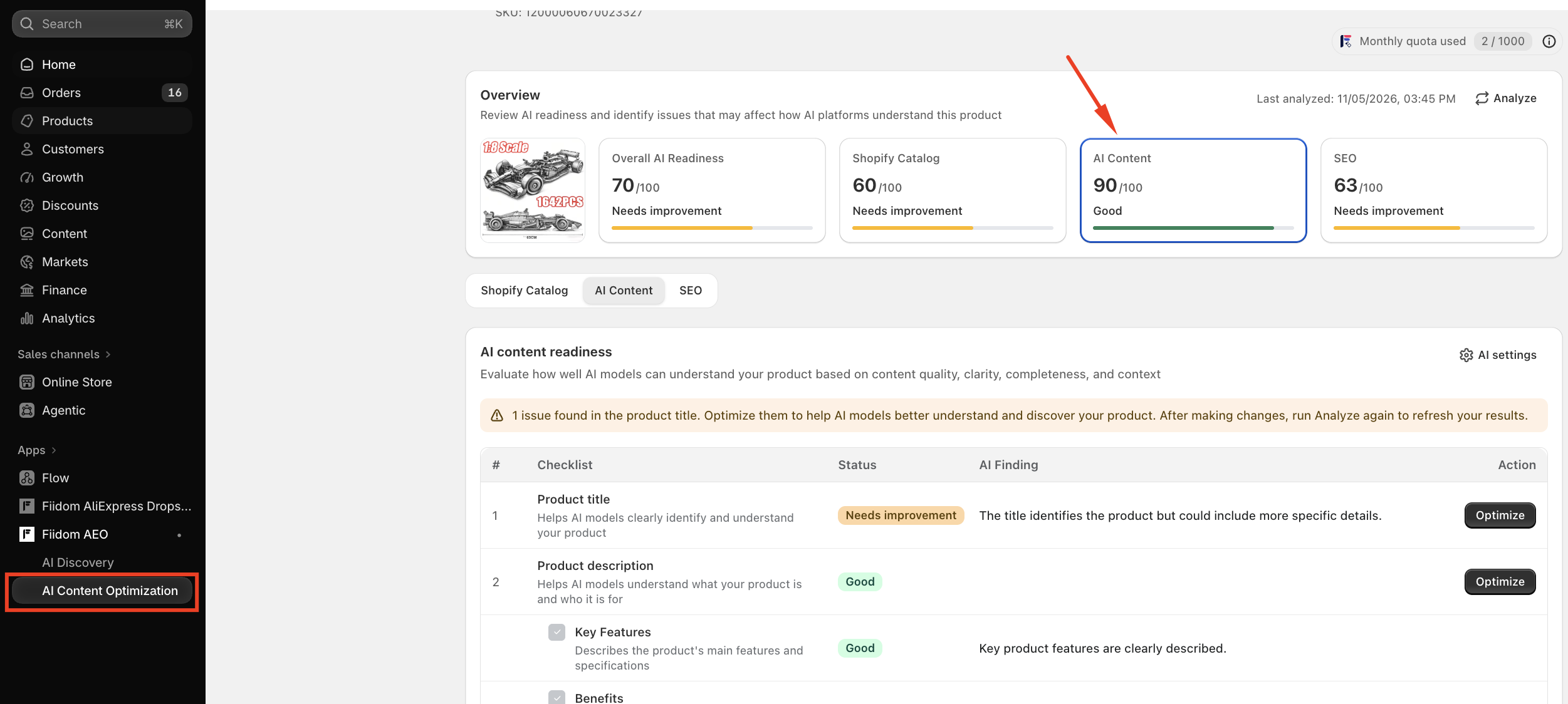
The tab is titled AI content readiness. It evaluates how well AI models can understand your product based on content quality, clarity, completeness, and context.
The AI Content card
When you open this tab, the AI Content card at the top is highlighted. It shows the product's AI Content score out of 100, based on the eight main checklist rules described below.
| Score | Status |
|---|---|
| 80–100 | Good (green) |
| 50–79 | Needs Improvement (yellow) |
| 0–49 | Poor (red) |
The score is also marked Poor if the product has at least one critical issue, even when the number is high, so a good score never hides a serious problem.
The AI Content score makes up 30% of the product's Overall AI Readiness.
Issue messages
A message above the checklist sums up what was found:
| Situation | Message |
|---|---|
| Issues in both title and description | X issues found in your product content. Fix the issues below to improve your AI Content score. |
| Issues in the title only | X issues found in the product title. Optimize them to help AI models better understand and discover your product. |
| Issues in the description only | X issues found in the product description. Optimize them to help AI models better understand and discover your product. |
| Everything is Good | Your product content is well optimized and ready for AI discovery. |
An issue is any rule with a Needs Improvement or Poor status. After you fix them, click Analyze at the top of the page to refresh your results.
The AI content checklist
The checklist has four columns: Checklist, Status, AI Finding (what the AI noticed, such as The title identifies the product but could include more specific details), and Action.
Product title
Checks whether the title helps AI models clearly identify and understand the product. Click Optimize to improve it.

Product description
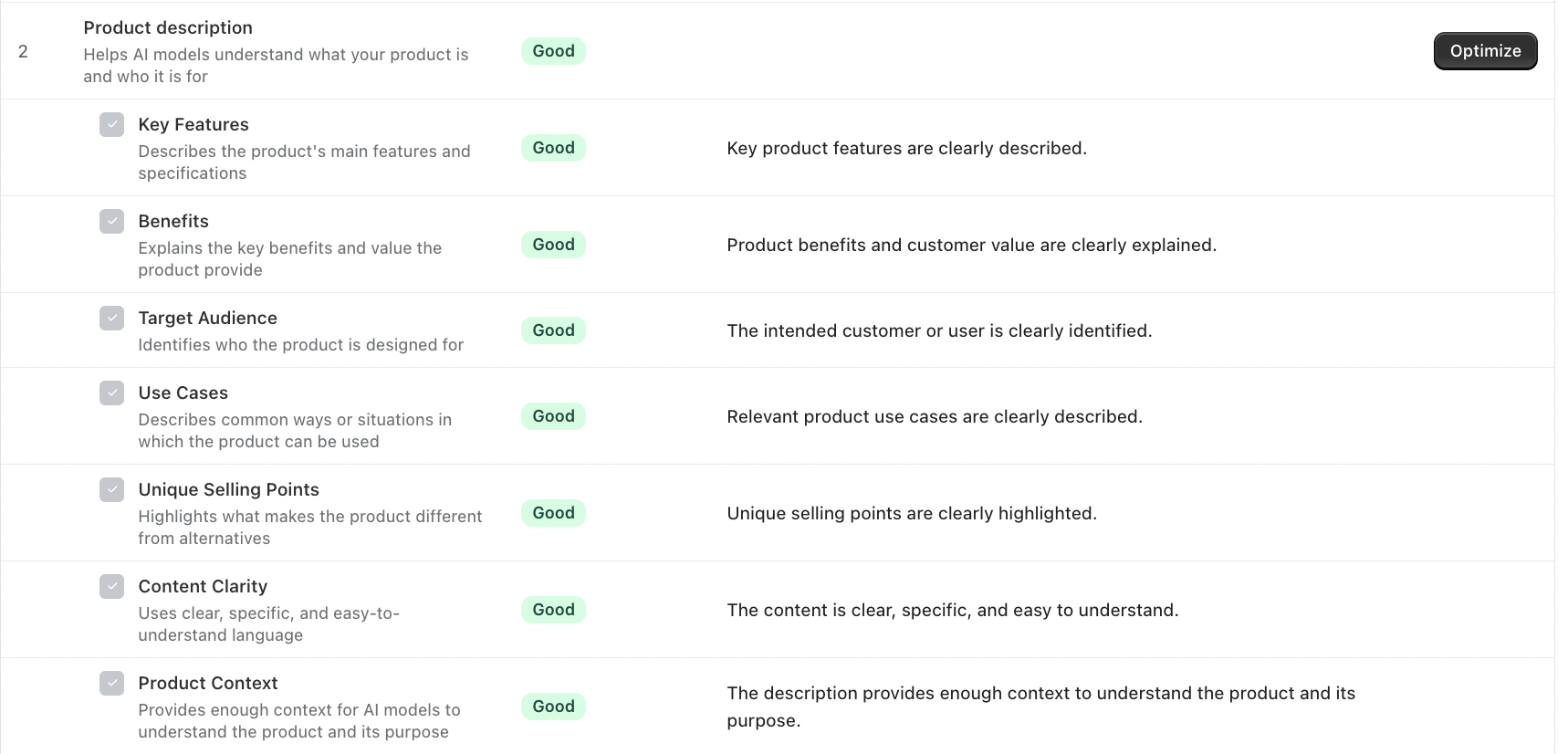
Checks whether the description helps AI models understand what the product is and who it's for. It's broken down into seven rules:
| Rule | What AI looks for |
|---|---|
| Key Features | The product's main features and specifications |
| Benefits | The key benefits and value the product provides |
| Target Audience | Who the product is designed for |
| Use Cases | Common ways or situations in which the product is used |
| Unique Selling Points | What makes the product different from alternatives |
| Content Clarity | Clear, specific, easy-to-understand language |
| Product Context | Enough context for AI to understand the product and its purpose |
Click Optimize next to Product description to improve it.
Together, the title and these seven rules make up the eight main rules behind your AI Content score.
Additional content
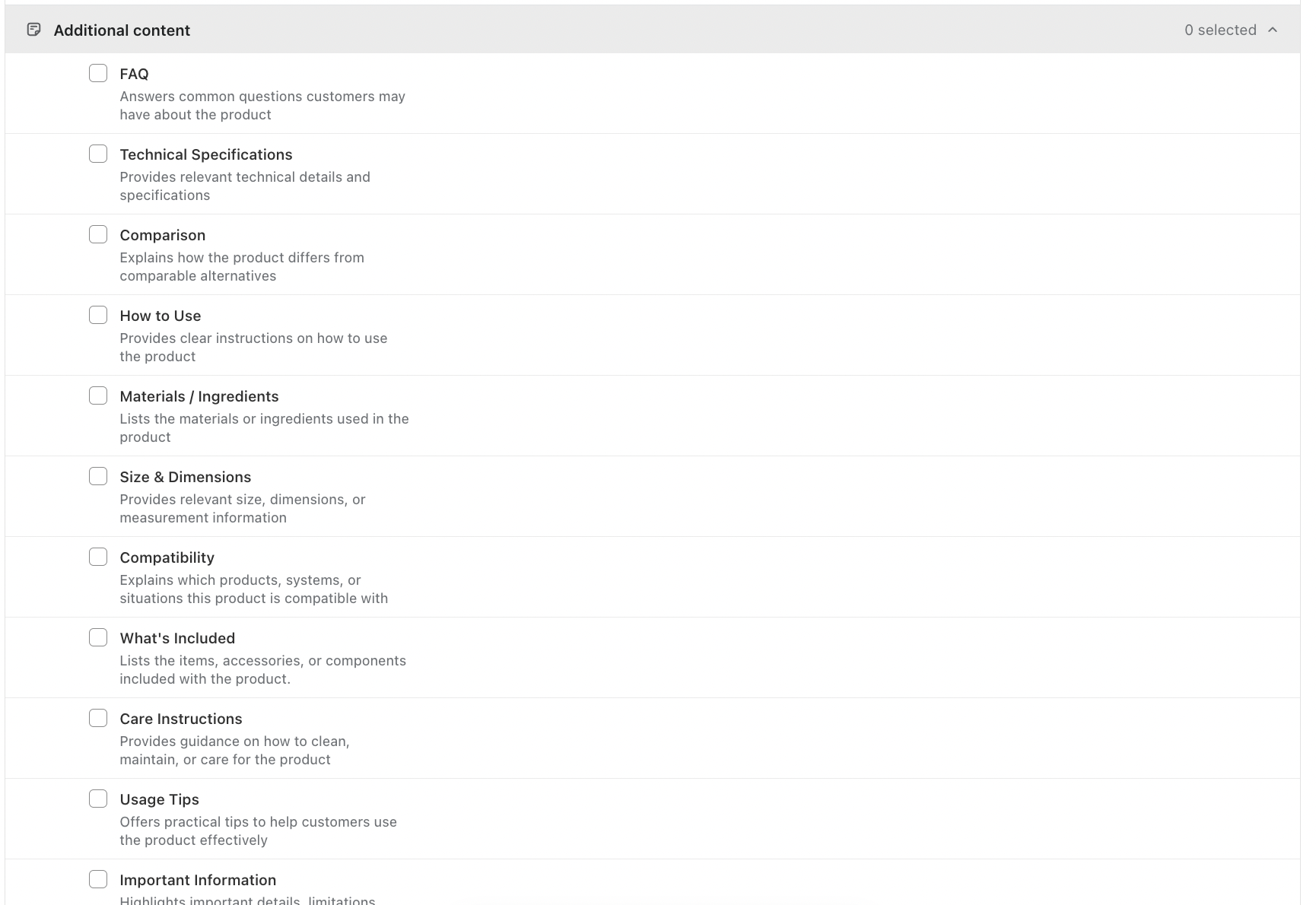
Below the main rules, Additional content lets you check extra details that matter for your products. Expand it and tick the checks you want. None are selected by default, and you can choose several.
- Fiidom keeps the results from the product's latest analysis, so a check's result appears as soon as you tick it.
- Additional checks use the same three statuses, but they're lower impact. They don't count toward the score, and a Poor result doesn't change the product's overall status.
At the bottom of the checklist, a legend reminds you what each status means: Good is well optimized, Needs Improvement needs attention, and Poor needs significant improvement.

Fix content with Optimize
Click Optimize next to Product title or Product description to open the matching window: Optimize product title or Optimize product description. The top shows the product name, its status, and a View on Shopify link.
Current and optimized content
The window shows two versions side by side:
- Current: the title or description as it is in Shopify now.
- Optimized: the improved version written by AI. When it comes from AI, it's marked Fiidom AI suggestion.
You can edit the optimized text yourself, Copy it, or click Skip this suggestion. If you edit the text by hand, the AI suggestion label is removed.
Choose a style with presets
The AI Optimize panel on the right lets you rewrite the content in a specific style. On the Preset tab, pick a style and click Optimize, for example:
| Preset | Best for |
|---|---|
| SEO Keyword Optimizer | Helping the product get found and rank higher in Google search |
| Click-Through Magnet | Short, catchy titles for ads, social media, and mobile |
| Luxury Brand Showcase | Highlighting premium style for jewelry, fashion, and high-end stores |
Use the Custom tab to give your own instructions instead. The panel also shows your Monthly quota used.
Save your changes
When you're happy with the optimized content, click Save to update the product in your Shopify admin. Then click Analyze on the product detail page to see your new AI Content score.
Auto-optimize with AI
Click AI settings in the top right of the AI Content tab to manage Auto-optimize with AI. It's on by default.
When it's on, opening the Optimize window for a title or description with a Needs Improvement or Poor status automatically creates an optimized version for you. A message lets you know, for example: Your product title is well optimized for AI understanding and ready to save. Save now. Review it, then click Save.
Auto-optimize doesn't run for content that's already Good. To turn it off, switch the toggle off in AI settings and click Save. You can still optimize manually with presets.
Note: Auto-optimization pauses when you run out of quota and resumes automatically once more quota becomes available.
How quota is used
| Action | Quota used |
|---|---|
| Each auto-optimization | 1 |
| Each time you click Optimize with a preset or custom instructions | 1, or more for settings that need extra quota |
| Analyzing the product | 1 (from the All products page) |
You can see how much you've used in Monthly quota used on the Products tab and in the AI Optimize panel.
Tips for a higher AI Content score
- Start with the title. A clear, specific title is the first thing AI uses to identify your product.
- Cover all seven description rules. Mention features, benefits, who it's for, how it's used, and what makes it different.
- Write for people, not just AI. Clear, simple language scores well and reads better for shoppers too.
- Review before saving. AI suggestions are a strong starting point, but check that every detail is accurate for your product.
- Analyze again after saving. Click Analyze to update your score and confirm the issues are fixed.
Should you need any further information, please do not hesitate to contact us directly at [email protected]